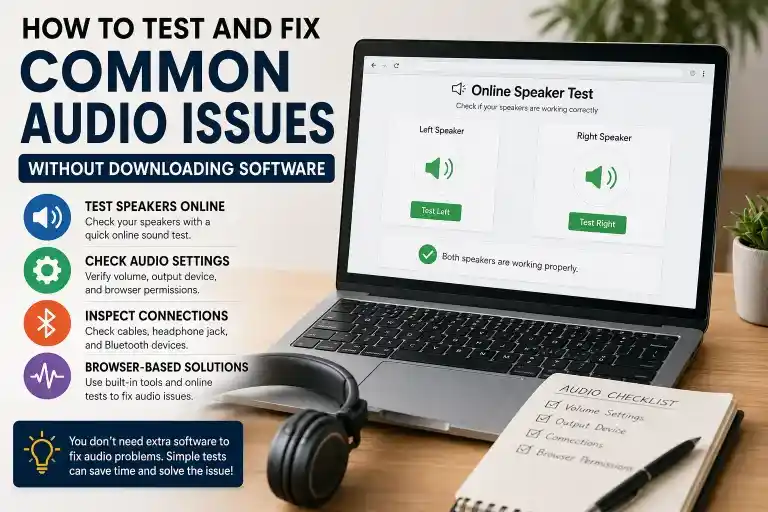
How to Test and Fix Common Audio Issues Without Downloading Software
Audio problems can happen at the worst possible time. Maybe your speakers suddenly stop working during a meeting, your headphones produce no sound, or your browser plays videos without audio. Before you install extra software or assume your hardware is broken, there are several simple ways to identify and solve the issue.
The good news is that you can fix audio issues without software in many cases. Modern web browsers and built-in operating system tools make it easy to test your sound, identify common problems, and restore audio within minutes. If you’re looking for a quick solution, a Fix My Speaker online tool can also help you test your speakers and determine whether the issue is related to your browser, audio settings, or connected devices.
In this guide, you’ll learn how to test your speakers, check important audio settings, and perform browser-based audio troubleshooting without downloading any applications.
Why Audio Problems Happen
Audio issues can be caused by several factors, including:
- Incorrect output device selection
- Muted system volume
- Browser audio permissions
- Loose speaker or headphone connections
- Bluetooth devices connected automatically
- Audio driver configuration issues
- Problems with the sound card
- Temporary operating system glitches
Finding the actual cause is much easier when you test each component one step at a time.
Start with a Quick Online Speaker Test
The fastest way to determine whether your speakers are working is to test speakers online using a browser-based sound test.
An online speaker test lets you:
- Verify that your speakers produce sound
- Check left and right audio channels
- Confirm browser audio is functioning
- Test headphones without installing software
- Identify whether the issue is hardware or software related
Because these tests run directly inside your browser, they work on most modern devices.
Check Your Volume Settings First
Before looking for more complicated solutions, confirm that your system volume is configured correctly.
Things to check include:
- Master system volume
- Speaker volume controls
- Monitor volume (if using built-in speakers)
- Keyboard volume shortcuts
- Application-specific volume settings
Many audio issues are simply caused by muted sound or low volume levels.
Inspect the Volume Mixer
The Volume Mixer in Windows allows every application to have its own audio level.
Sometimes:
- Browser volume is muted
- Media player volume is set to zero
- Communication apps reduce other sounds automatically
Open the Volume Mixer and verify that your web browser and media applications are not muted.
This simple step solves many cases where users think their speakers have stopped working.
Verify the Correct Audio Output Device
Modern computers often have multiple audio devices connected at once.
For example:
- Internal speakers
- USB headset
- Bluetooth headphones
- HDMI monitor speakers
- External speakers
If your computer is sending audio to the wrong device, you’ll hear nothing even though everything appears normal.
Select the correct playback device from your audio settings before continuing with further troubleshooting.
Test Different Browsers
If sound doesn’t work in one browser, try another.
Supported browsers include:
- Chrome
- Firefox
- Safari
- Microsoft Edge
A successful sound test in another browser usually indicates that the issue is related to browser settings rather than your computer.
This is an important step in browser-based audio troubleshooting.
Check Browser Permissions
Some websites require permission to access audio-related features.
Although speaker testing generally doesn’t require microphone access, browser settings can still affect audio playback.
Make sure:
- Website sound is allowed
- Browser is not muted
- Automatic media playback is enabled if needed
Restarting the browser after changing permissions can also help.
Disconnect Bluetooth Devices
Bluetooth devices frequently cause unexpected audio problems.
For example:
- Wireless earbuds reconnect automatically
- Bluetooth speakers remain selected
- Hidden devices become the default audio output
Turn Bluetooth off temporarily or disconnect unused devices.
Then perform another no download sound test to see whether your speakers begin working again.
Examine Your Speaker Connections
If you’re using external speakers, inspect every cable carefully.
Check:
- Power cable
- Audio cable
- USB connection
- Speaker power switch
Loose connections are one of the most common reasons for missing sound.
If available, test the speakers with another device to confirm they are functioning properly.
Test Your Headphone Jack
Sometimes the headphone jack becomes the default audio output even when nothing is plugged in.
Try:
- Plugging headphones in
- Removing them slowly
- Testing sound again
Dust or debris inside the headphone jack can also interfere with audio detection.
Restart Audio Services
A simple restart often resolves temporary sound issues.
Close:
- Music players
- Browser tabs
- Video applications
Then restart your computer before performing another speaker test.
Many temporary audio problems disappear after a reboot.
Verify Audio Driver Status
An audio driver connects your operating system with the sound hardware.
If the driver becomes corrupted or disabled, sound may stop working.
Check Device Manager on Windows to ensure:
- Audio driver is enabled
- No warning icons appear
- Driver loads correctly
On macOS, use System Settings to verify that the audio device is recognized properly.
In many situations, simply restarting the computer refreshes the driver without requiring reinstallation.
Check Sound Card Detection
Your sound card processes all audio sent to your speakers or headphones.
If the operating system cannot detect it, sound will not play.
Signs include:
- Missing playback devices
- No available speakers
- Audio settings showing no output device
An online speaker test cannot repair hardware problems, but it helps determine whether the issue is likely related to your sound card.
Test on Windows and macOS
Both Windows and macOS include built-in audio tools.
Windows
You can:
- Run the built-in audio troubleshooter
- Verify playback devices
- Check Volume Mixer
- Confirm driver status
macOS
You can:
- Open Sound Settings
- Select Output Device
- Adjust Output Volume
- Test internal speakers
- Verify connected headphones
Neither platform requires additional software for basic troubleshooting.
Try Another Pair of Speakers or Headphones
If possible, connect:
- Different headphones
- Another speaker
- USB headset
If the new device works correctly, your original speakers may require repair or replacement.
If neither device works, the issue is probably within the operating system or audio settings.
Benefits of an Online Speaker Diagnostic Tool
Using an online speaker diagnostic tool offers several advantages.
These tools are:
- Fast
- Free
- Browser-based
- Compatible with most operating systems
- Easy for beginners
- No installation required
They provide an immediate way to determine whether your speakers are producing sound before spending time on more advanced troubleshooting.
When Hardware May Be the Problem
If you’ve completed every troubleshooting step and still hear no sound, hardware may be responsible.
Possible hardware issues include:
- Damaged speakers
- Faulty sound card
- Broken headphone jack
- Internal cable damage
- Power supply problems
Testing another audio device helps confirm whether hardware replacement is necessary.
Final Thoughts
Most sound problems can be solved with a few simple checks. Before downloading repair software or replacing your equipment, verify your volume settings, confirm the correct playback device, disconnect unused Bluetooth devices, inspect your speaker connections, and test speakers online using a browser-based tool. If you’re looking for other browser-based utilities, you can also explore our Brat Generator tool for creating stylish text online without installing any software.
Following these steps can help you fix audio issues without software while saving both time and unnecessary downloads. Whether you’re using Windows or macOS, built-in settings combined with a quick no download sound test provide an effective way to identify common audio problems and restore clear sound quickly.