
What Does “Update Requested” Mean? (And How to Fix It)
Asking what does update requested mean usually happens mid-update, watching a progress bar that stopped moving an hour ago. The short answer: it is not a download stage at all, it is your device checking in with Apple’s servers before any update data transfers.
That distinction is why so many of the usual fixes (checking your Wi-Fi, restarting, freeing up storage) sometimes do nothing and why the one fix that reliably works gets buried near the bottom of most guides covering this.
This guide walks through what the status technically represents, where it sits relative to the download and install stages that follow it, the handful of things that actually cause it to stall and a full set of fixes ordered from quickest to most reliable, including the computer-based method that most other write-ups mention only in passing near the end.
What Does Update Requested Actually Mean
When you tap Download and Install on a pending iOS update, the button changes to “Update Requested” before anything downloads. That label describes an authentication and eligibility handshake, your device confirming with Apple’s servers that it is cleared to receive this specific update, not the download itself.
Only once that handshake completes does the status change to “Downloading,” and the actual transfer of update data begins. A device can sit on “Update Requested” for a while even with a fast, stable connection, since the bottleneck at this stage lives on Apple’s servers, not on your Wi-Fi.
Behind the scenes, this handshake does several things at once: it confirms your device’s model and current software version are eligible for the specific build being offered, checks that your Apple ID and device are both in good standing and reserves a place for your device in the queue of installer files Apple’s servers are about to hand out. None of those checks need your Wi-Fi to be fast. They need Apple’s servers to respond, which is exactly why this stage behaves so differently from an ordinary download.
This is also why force-quitting the Settings app or turning your phone off and back on sometimes appears to help: it does not speed up the server but it does reset the stuck request so a fresh one can be issued, which occasionally lands at a quieter moment on Apple’s end.
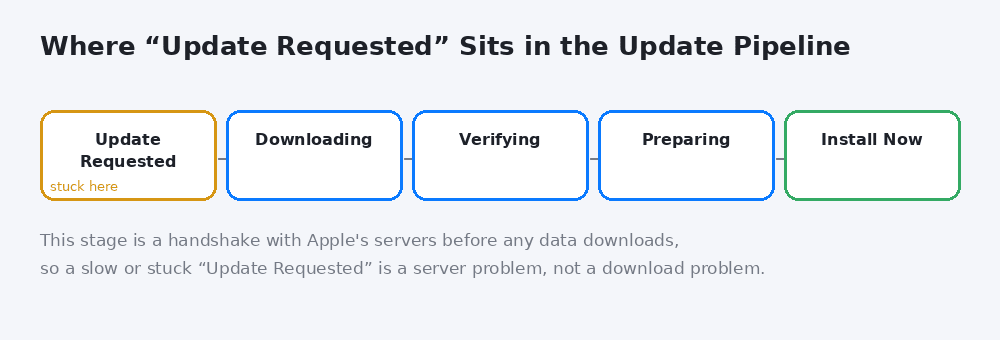
What does update requested mean in practice: a server handshake stage, before the download even starts.
Where This Stage Sits in Apple’s Update Pipeline
A full iOS update moves through a consistent sequence: Update Requested, then Downloading, then Verifying, then Preparing and finally Install Now. Each stage hands off to the next only once it finishes cleanly, so a stall at the very first stage means the later ones never get a chance to start.
Knowing which stage you are actually stuck on matters for picking the right fix. A stall during Downloading is genuinely a connection problem, since a progress percentage is visibly climbing and simply slowing down. A stall at Update Requested almost never is, since there is no percentage moving at all. It is either sitting in the authentication queue or it has failed silently and needs to be restarted.
Verifying and Preparing, the two stages after the download finishes, are different again: those happen almost entirely on the device itself, checking the downloaded file’s cryptographic signature and staging it for installation. A stall there points to a storage or file-corruption issue rather than anything server-side, which is a separate troubleshooting path from the one this guide focuses on.
What Normally Causes It to Get Stuck
Four things account for most cases: Apple’s update servers being overloaded (especially right after a release), a cellular connection where only Wi-Fi is accepted, insufficient free storage for the update to even be authorized and Low Power Mode interfering with the background request.
Less commonly, a previous failed update attempt leaves a partially downloaded file behind that blocks a fresh request from completing cleanly, which is where deleting and retrying, covered further down, comes in.
A Screen Time or supervised-device restriction can also quietly block the handshake, since some organization-managed or parent-managed iPhones require approval before any system update is allowed to proceed. If the device belongs to a school, employer or family-sharing setup, that is worth ruling out before assuming it is a server issue.
Finally, an outdated Apple ID session, such as one that has not re-authenticated in a long time, can occasionally cause the eligibility check to fail silently rather than returning a clear error, which looks identical to a server overload from the device’s side but needs a sign-out and sign-back-in rather than patience.
Fix 1: Confirm You Are on Wi-Fi, Not Cellular
iOS updates require a Wi-Fi connection for anything beyond a small file size, even if your cellular connection is fast. Open Control Center and confirm the Wi-Fi icon is active and connected, not just toggled on, before assuming the problem is something else.
It helps to confirm this a second way too: open Settings, then Wi-Fi and check that the network name shown there matches the one you expect, rather than a weaker guest network or a neighboring network your phone joined automatically. A connected-but-wrong network produces the exact same stuck appearance as no connection at all.
Fix 2: Check Apple’s System Status Page
Before troubleshooting your own device, check Apple’s System Status page for the Software Update service specifically. A server-side outage or heavy load, common in the first day or two after a major release, produces exactly this symptom on perfectly healthy devices and no amount of restarting fixes a problem that is not on your end.
Fix 3: Free Up Storage Space
Go to Settings, then General, then iPhone Storage and confirm you have meaningfully more free space than the update’s listed size, not just barely enough. iOS needs working room beyond the update file itself to stage and verify the installation and a device sitting right at the edge can fail the authorization check at the Update Requested stage before storage even becomes an error message.
Fix 4: Restart or Toggle Airplane Mode
A straightforward restart clears a surprising number of stuck update requests, since it resets whatever background process initiated the original handshake. If a restart alone does not help, toggle Airplane Mode on, wait about a minute, then turn it back off before trying the update again, which forces a clean reconnection to Apple’s servers rather than reusing a stale connection.
Fix 5: Delete the Update File and Retry
If a previous update attempt failed partway through, go to Settings, then General, then iPhone Storage, find the update listed there and delete it before requesting the update again. This clears out a partially downloaded or corrupted file that can otherwise block a fresh Update Requested handshake from completing.
The Fix Most Guides Bury: Updating Through a Computer
Connecting your iPhone to a Mac or PC and updating through Finder (on a current Mac), the Apple Devices app (on Windows) or iTunes (on an older Mac) downloads the complete, signed update file directly to the computer first. That sidesteps the OTA Update Requested queue on Apple’s servers entirely, rather than simply retrying the same request and hoping it clears.
This is worth trying earlier than most guides suggest, not as a last resort. If Apple’s own System Status page shows elevated load, a computer-based update often succeeds in minutes while the on-device request would otherwise sit stuck for hours.
The practical steps: connect the iPhone with a cable, open Finder (or iTunes or Apple Devices on Windows), select the device in the sidebar, click General and choose Check for Update followed by Update. Because the installer file is pulled straight to the computer over a standard download connection rather than queued through the device-authentication handshake, it is far less affected by the same server load that stalls the on-device request.
One trade-off worth knowing: a computer-based update still requires enough free space on the iPhone itself to install the downloaded file, so it is not a workaround for a device that is out of storage, only for one stuck specifically at the request stage.
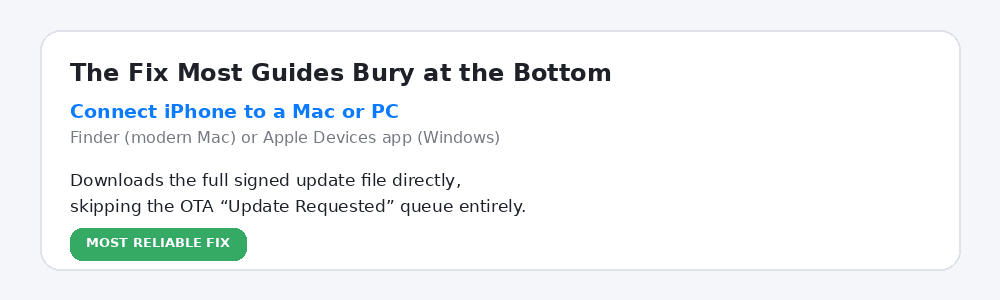
The most reliable fix downloads the update file directly, bypassing the stuck Update Requested stage entirely.
Does This Happen on iPad and Other Apple Devices Too
Yes. iPadOS shares the same update pipeline as iOS, so an iPad can show Update Requested and get stuck on it for the exact same reasons, the authentication handshake with Apple’s servers, not a download problem. Every fix in this guide, including the Mac or PC connection method, applies the same way on an iPad.
Apple Watch and Apple TV updates go through a related but separate process, usually relayed through a paired iPhone or initiated from the device’s own settings and tend to surface storage and connectivity errors more explicitly rather than sitting silently on a request stage, so this particular stuck state is mostly an iPhone and iPad experience.
Why Release-Day Updates Get Stuck More Often
Millions of devices requesting the same update within hours of a release overwhelm the authentication stage specifically, since every single request has to complete that same server-side handshake before downloading can begin. This is exactly why a release-day update commonly produces more Update Requested complaints than the exact same update does a week later, once initial demand has settled.
This pattern repeats with nearly every major iOS release and it is well documented across Apple’s own support community: large point releases and security updates that follow widely publicized vulnerabilities tend to produce the heaviest simultaneous demand, since a much larger share of the install base tries to update within the same narrow window instead of spreading out naturally over days or weeks.
When to Just Wait It Out
If Apple’s System Status page confirms elevated load and you are not in a hurry, waiting a few hours before trying again is often genuinely the fastest path, since no combination of restarts or toggles speeds up a server-side queue. Updating overnight, when both your own usage and overall demand on Apple’s servers are lower, avoids the problem for most people entirely.
A reasonable rule of thumb: if a security update is involved, do not leave the device fully unpatched indefinitely while waiting. Try the computer-based method covered above first, since it tends to succeed well before server load naturally subsides and fall back to waiting only if that is not an option.
FAQs
What does update requested mean if it never changes to Downloading?
Your device is stuck in the authentication handshake with Apple’s servers, which happens before any data downloads. This is most often caused by server overload (especially right after a release) rather than a problem with your own connection.
Why does my iPhone say Update Requested but nothing happens?
The device is waiting on Apple’s servers to confirm eligibility for the update before downloading begins. Checking Apple’s System Status page for the Software Update service is the fastest way to confirm whether the delay is server-side.
Does a faster Wi-Fi connection fix a stuck Update Requested status?
Usually not. This stage happens before any download starts, so connection speed rarely matters here, though confirming you are on Wi-Fi rather than cellular is still worth checking first.
What is the fastest fix for Update Requested being stuck?
Connecting the iPhone to a Mac or PC and updating through Finder, the Apple Devices app or iTunes downloads the update file directly, bypassing the stuck on-device request entirely.
Does Low Power Mode cause Update Requested to get stuck?
Yes, it can. Low Power Mode restricts background activity in ways that interfere with the update request. Turning it off in Settings before requesting the update again resolves this for some devices.
Is it safe to just wait when it says Update Requested?
Yes. Nothing is broken by waiting and if server load is the cause, as it often is right after a release, waiting a few hours or updating overnight commonly resolves it without any troubleshooting at all.
Does this happen on iPad as well as iPhone?
Yes, iPadOS shares the same update pipeline, so an iPad can get stuck on Update Requested for the same server-handshake reasons and responds to the same fixes, including the computer-based method.
Can a Screen Time restriction cause Update Requested to get stuck?
Yes. On a supervised or family-managed device, update approval can be gated by Screen Time or a configuration profile, which blocks the handshake in a way that looks identical to a server delay.
Conclusion
What does update requested mean, in short: your device confirming eligibility with Apple’s servers before any update data downloads, not a download problem itself. That is why checking Apple’s System Status page and if time matters, updating through a computer rather than over the air solves this faster than the usual restart-and-hope approach most guides lead with.
Work through the fixes in order if you are not sure where to start: confirm Wi-Fi, check server status, confirm storage, restart or toggle Airplane Mode and delete-and-retry if a previous attempt failed. But if the update genuinely needs to be installed soon, whether for a security patch or because an app now requires the newer OS version, skip straight to the computer-based method rather than cycling through the earlier steps first.
BratGen’s homepage also has free browser-based generators that need no app update at all, if you would rather sidestep this particular problem entirely for whatever you were about to do next.