
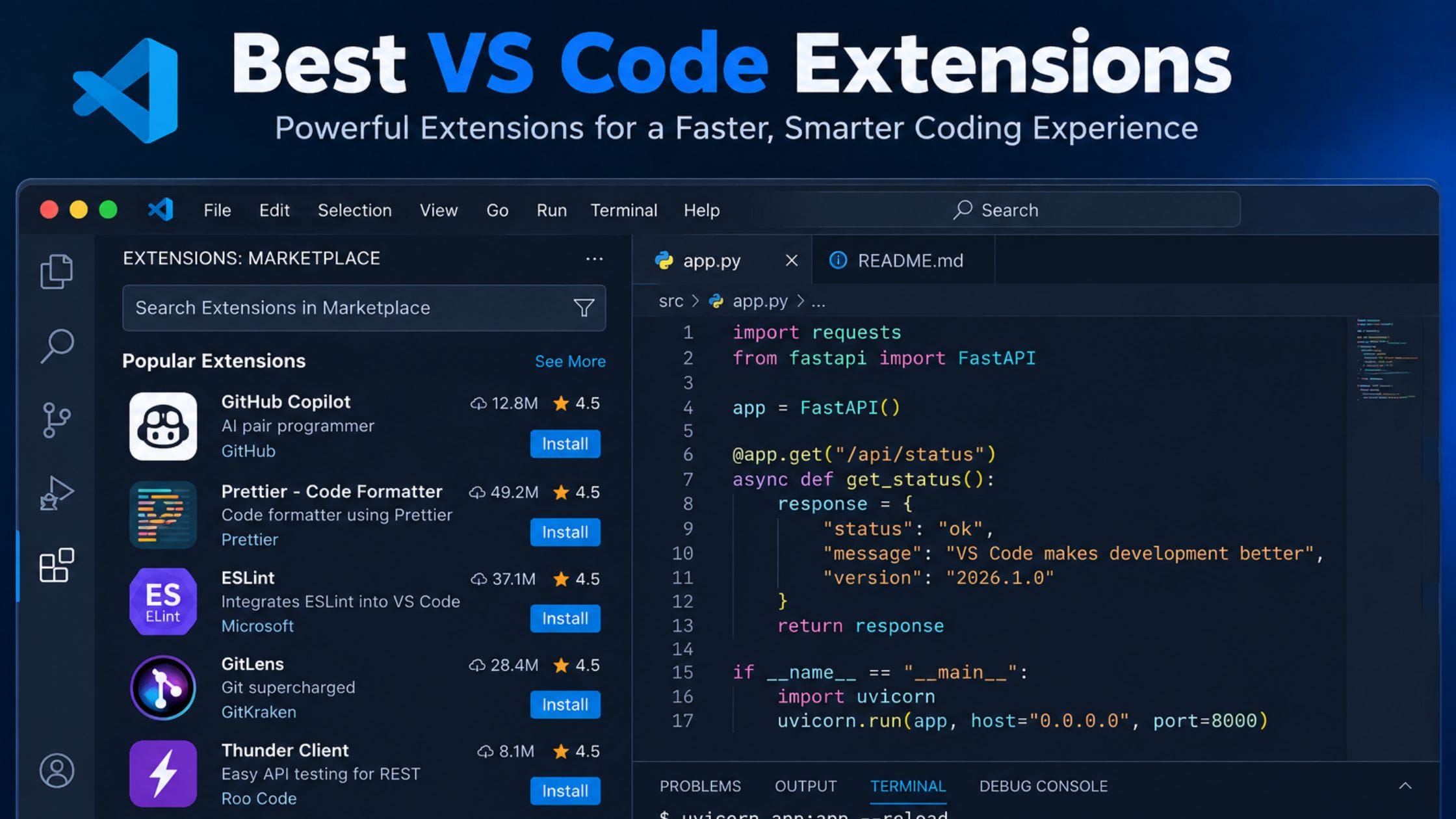
12 Best VS Code Extensions for Developers in 2026
Visual Studio Code ships light out of the box and that is exactly the point. It becomes a real development environment only after you add the extensions that fit your stack and most developers are running a random mix picked up over the years instead of a setup chosen on purpose. A slow, cluttered editor full of unused extensions costs you time every single day without you noticing where it went. This guide covers the best VS Code extensions for 2026, why each one earns a place in a daily workflow and how to build a setup that stays fast instead of bloated.
Why Your Extension Choices Matter
Every extension you install adds to the editor’s startup time and background memory use, even the ones you barely open. A handful of well-chosen extensions makes VS Code feel faster and more capable at once, while a pile of overlapping ones slows it down and buries the features you actually rely on. The goal is not to install everything in the marketplace. It is to cover formatting, error checking, version control and testing with as few overlapping tools as possible.
Before adding any extension, it helps to run a quick gut check. Look at who built it and whether it comes from a verified publisher with an active repository. Check whether it has been updated recently, since an abandoned extension can quietly break with a future VS Code update. Skim the permissions and changelog too, since a heavy extension with broad access is worth a second look before it goes anywhere near your machine.
How We Picked These Extensions
This list sticks to extensions that solve a real, current workflow problem rather than ones riding old download momentum from years ago. Each pick was judged on four things: how often a working developer actually touches it, whether it is actively maintained, how well it plays with other tools on this list without duplicating features and whether the free tier covers real day-to-day use. AI-assisted extensions get a place here too, since inline code completion and chat-based editing are now a normal part of most developers’ setups rather than a novelty.
Quick Comparison Table
| Extension | Best For | Price | Category |
| GitHub Copilot | AI code completion and chat | Paid, free tier limited | AI assistant |
| Error Lens | Inline error and warning highlights | Free | Code quality |
| GitLens | Git blame, history and comparisons | Free, paid tier optional | Version control |
| Prettier | Automatic code formatting | Free | Formatting |
| ESLint | JavaScript and TypeScript linting | Free | Code quality |
| Thunder Client | API testing inside the editor | Free, paid tier optional | Testing |
| Path Intellisense | Autocomplete file paths | Free | Productivity |
| Auto Rename Tag | Keeps HTML and JSX tag pairs in sync | Free | Productivity |
| Docker | Build and inspect containers | Free | DevOps |
| Dev Containers | Preconfigured container environments | Free | DevOps |
GitHub Copilot: Best AI Coding Assistant
GitHub Copilot has moved well beyond simple autocomplete and now works as a broader coding agent inside VS Code, capable of suggesting whole functions, explaining unfamiliar code and handling multi-step edits across a project when asked. It reads the context of your open files and recent edits, so its suggestions tend to match your existing naming conventions and patterns rather than feeling generic. Most developers use it as a first draft generator, then review and adjust the output rather than accepting everything blindly.
The free tier covers light use and the paid plans unlock a higher volume of suggestions along with chat-based editing across multiple files at once. If you already use another AI coding tool outside the editor, Copilot still tends to be worth keeping installed for the moments when you want a suggestion without leaving VS Code entirely.
Error Lens: Best for Catching Bugs Instantly
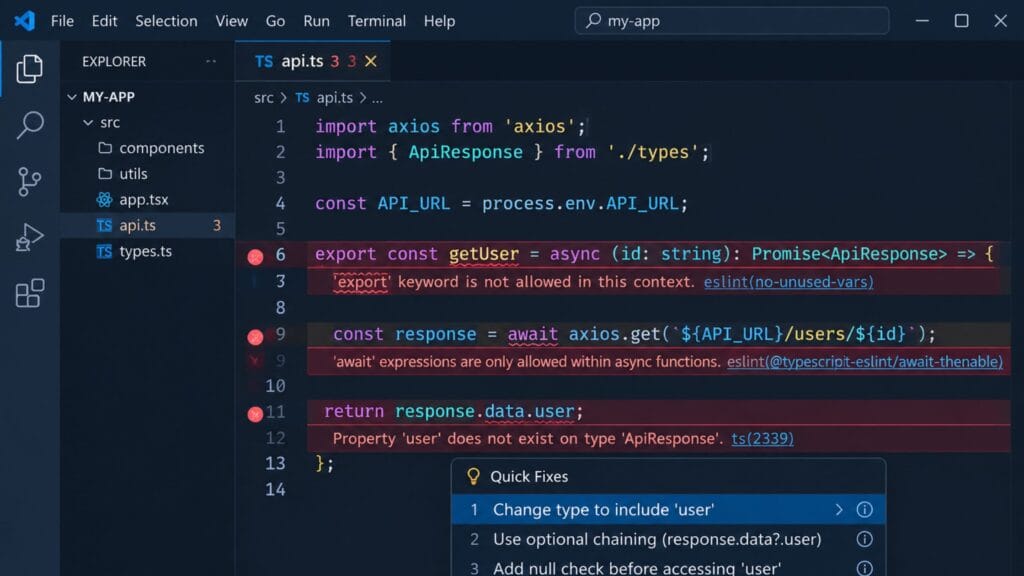
Error Lens takes the errors and warnings VS Code already detects and displays them directly on the line where they occur instead of tucking them into a separate panel you have to open. That small change removes a surprising amount of friction, since you catch a typo or a type mismatch the moment you make it rather than after you save or run the file. For any language with strong tooling support, this is one of the fastest ways to reduce small, avoidable bugs.
It works well alongside ESLint and TypeScript’s built-in checking without any extra configuration and it stays lightweight enough that most developers never notice a performance cost from having it installed.
GitLens: Best for Git History and Blame
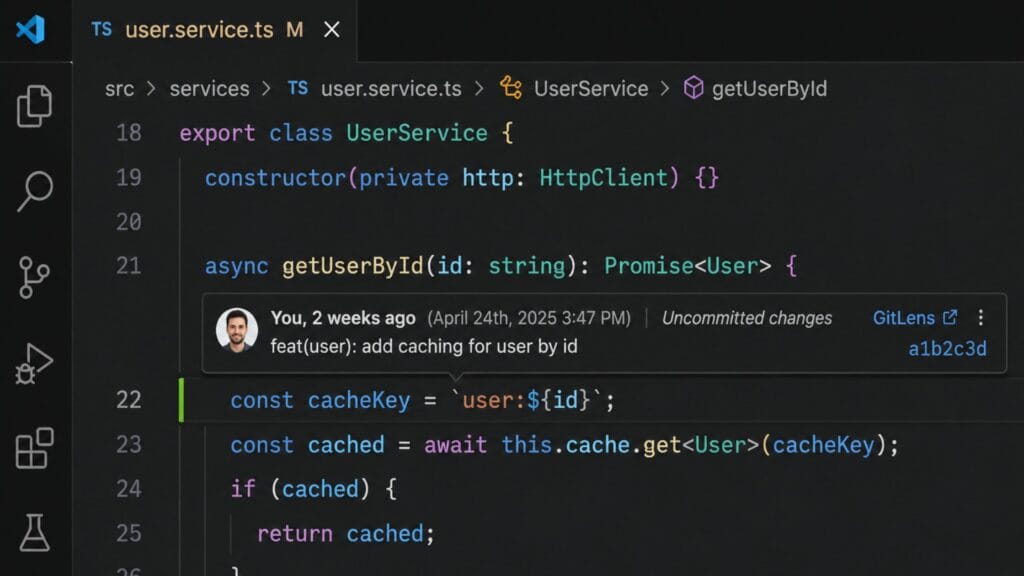
GitLens adds inline blame annotations that show who last changed a line and when, right above the code itself, along with a visual commit graph and deep file history exploration. Instead of switching to a terminal or a separate Git client to understand why a piece of code looks the way it does, you can see the relevant commit and its message without leaving the file. This matters most on team projects where code changes hands often and context gets lost between commits.
The free tier covers blame annotations, history browsing and repository comparisons, which is enough for most individual developers and small teams. The paid GitLens+ tier adds a visual commit graph and worktree support but plenty of developers never feel the need to upgrade past the free version.
Prettier and ESLint: Best for Formatting and Code Quality
Prettier removes formatting debates from code review entirely by re-printing your code with a consistent, opinionated style every time you save. It supports JavaScript, TypeScript, CSS, HTML, Markdown and several other formats, which means one extension handles formatting across nearly an entire frontend project. Once it is set to format on save, you stop thinking about spacing and line breaks completely.
ESLint covers a different job by catching actual code quality issues, from unused variables to patterns that tend to cause bugs in JavaScript and TypeScript. Running Prettier and ESLint together is the standard combination for most JavaScript projects, since one handles style and the other handles substance and configuring them to avoid conflicting rules takes only a few minutes.
Thunder Client: Best for API Testing Inside the Editor
Thunder Client brings Postman-style API testing directly into VS Code, so you can send a request and inspect the response without switching to a separate application. It supports saved collections, environment variables and basic scripting, which covers most of what a working developer needs when testing an endpoint during development. Because it lives inside the editor, it is genuinely faster for quick checks than opening a dedicated API client.
The free tier is generous enough for individual developers and small projects and the paid tier mainly adds team collaboration features that matter more for larger groups sharing collections across a codebase.
Path Intellisense and Auto Rename Tag: Best Small Time-Savers
Path Intellisense autocompletes filenames as you type an import or a relative path, which sounds minor until you are working in a deeply nested folder structure and it saves you from typing out or hunting down a path by hand. It is one of those extensions you barely think about once installed, because it just quietly removes a small repetitive task.
Auto Rename Tag solves a different small annoyance in HTML and JSX by automatically updating the closing tag whenever you rename the opening one. Without it, renaming a tag means manually catching and fixing the matching pair, which is an easy step to miss in a large file. Both extensions are free, lightweight and close to invisible in daily use, which is exactly what a good utility extension should be.
Docker and Dev Containers: Best for Containerized Development
The Docker extension brings container management into VS Code, letting you build images, inspect running containers and read logs without switching to a separate terminal workflow. For anyone developing microservices or any application that ships in a container, this removes a lot of the context switching that normally comes with container-based development.
Dev Containers takes that a step further by letting you define an entire development environment through a container configuration file. Instead of installing dependencies locally and hoping your machine matches a teammate’s setup, VS Code opens the project inside a container with everything preconfigured. It takes a bit of setup time upfront but it pays off quickly on any team where onboarding a new environment used to take half a day.
How to Install and Manage Extensions Safely
Microsoft’s official Extension Marketplace documentation covers the full installation and trust process in detail, including how the Marketplace signs extensions and screens out malicious ones. The short version most developers need day to day looks like this.
1. Open the Extensions view from the Activity Bar icon or the View: Extensions command, then search for the extension by name.
2. Check the publisher name before installing. Verified publishers show a checkmark and official tools like Prettier, ESLint and GitLens are maintained by well-known teams or organizations.
3. Review the install count, rating and last update date. An extension that has not been updated in over a year is worth a second look before you rely on it.
4. Install it and restart VS Code if prompted, then confirm the trust dialog that appears for extensions from third-party publishers.
5. Periodically review your installed list and disable or remove anything you have not used in the last month to keep the editor fast.
How to Pick the Right Extensions for Your Setup
Start with the basics before adding anything specialized. Prettier and ESLint (or the equivalent linter for your language) cover formatting and code quality for almost any project and Error Lens makes both of them more useful by surfacing their output where you are already looking. GitLens is worth installing as soon as you work on a shared repository, even a small one, since Git context saves real time once a project has more than a few commits.
Add Thunder Client if you regularly work with APIs and add Docker and Dev Containers only once your project actually uses containers, since they add little value otherwise. GitHub Copilot is worth trying on its free tier before committing to a paid plan, since AI assistance is genuinely useful for some workflows and less useful for others depending on the kind of code you write most.
Whatever you choose, resist the urge to install an extension for every small feature you read about online. A focused set of eight to twelve extensions covers the vast majority of development work and adding more rarely adds proportional value once the basics are in place.
If you also spend time fine-tuning the rest of your development environment, our guide to the best coding fonts covers the other half of a comfortable editor setup and the Brat Generator homepage has more free creative and productivity tools if you want to poke around the rest of the site.
FAQs
What are the best VS Code extensions for beginners?
Prettier and ESLint are the best starting point for beginners, since they handle formatting and basic code quality without any advanced configuration. Error Lens is a close third pick because it makes the errors those tools catch immediately visible instead of buried in a separate panel.
Do more VS Code extensions slow down the editor?
Yes, every installed extension adds some startup time and background memory use, even when it is not actively doing anything. Keeping your extension list focused on tools you actually use regularly and disabling or removing the rest, keeps VS Code responsive.
Is GitHub Copilot worth it for every developer?
GitHub Copilot tends to help most with repetitive code, boilerplate and unfamiliar APIs, where it can suggest a reasonable first draft quickly. Developers working on highly specialized or unusual code sometimes find its suggestions less useful, so trying the free tier first is a reasonable way to judge fit before paying for it.
Can I use GitLens on a private or small repository?
Yes, GitLens works on any Git repository regardless of size or visibility and its free tier already covers blame annotations, history browsing and comparisons. It is useful even on solo projects since it makes past commits easier to search and understand months later.
What is the difference between Prettier and ESLint?
Prettier focuses purely on formatting, meaning spacing, line breaks and consistent style, while ESLint focuses on catching actual code problems like unused variables or risky patterns. Most JavaScript and TypeScript projects use both together since they cover different jobs without much overlap.
How do I know if a VS Code extension is safe to install?
Check that it comes from a verified publisher, has a reasonably high install count and rating and has been updated recently. VS Code also shows a trust confirmation dialog the first time you install an extension from a new third-party publisher, which is worth reading rather than dismissing automatically.
Conclusion
The best VS Code extensions for 2026 are not the flashiest ones in the marketplace. They are the small set that consistently removes friction from your actual workflow, from catching an error the moment you type it to seeing exactly who changed a line and why. Start with Prettier, ESLint and Error Lens if you have nothing installed yet, add GitLens as soon as you touch a shared repository and layer in Copilot, Thunder Client, Docker or Dev Containers only where your specific work actually needs them.
If this guide helped you clean up your editor, share it with a teammate who is still running VS Code with the default settings or drop a comment with the extension you could not work without.







One Comment