
How to Book a PSA Appointment Online: Complete Guide (2026)
Here’s the thing about PSA appointments now. You can’t just show up anymore. That’s dead. Every PSA outlet in the country requires a booked slot. No appointment? No entry. Doesn’t matter how early someone gets there. The whole process lives online now. And yeah, it’s actually faster. About ten minutes total. The official psa online appointment system is the only way in. Birth certificates. Marriage certificates. CENOMAR. Death certs. All of them go through this thing. No fees to book. No app to download. Just a browser and some basic info. This guide walks through every click. No extra stories. Just what works.
What Changed
Before, people lined up at 3 AM. Some waited five hours. Some never got served at all. The office just closed and sent everyone home. That doesn’t happen anymore. Now each person gets a specific time. The outlet knows exactly how many are coming each hour. No crowding. No guessing. Works on any device. Phone. Tablet. Laptop. It doesn’t matter which browser. And again. Booking costs zero pesos. Anyone asking for money to reserve a slot is running a third-party scam.
Get These Ready First
Don’t open the portal without these. Seriously.
What’s needed:
- Full name exactly as it appears on a government ID
- Email address that actually gets checked
- Philippine phone number (needs to receive texts)
- Full name of the person on the certificate
- Which PSA branch to go to
Tech stuff:
- Any device with a browser
- Internet connection
- Pop-ups turned on
No account needed. No password. Nothing to remember.
Having everything ready prevents the OTP code from expiring while searching for information.
Before moving ahead with the booking process, it’s worth double-checking your details to avoid common errors that can cancel or delay your appointment. Even small issues like incorrect name formatting, mismatched ID details, or incomplete information can force you to restart the entire process. To make things smoother, you can use simple document and form-checking tools to validate your data before submission. If you want a quick way to minimize errors and speed up the process, explore our document helper tools designed to help you prepare accurate information and avoid booking failures.
Step 1: Open the Right Site
Open a browser. Go to the official PSA appointment website.
Watch out for fake sites. Some show up in search results asking for credit card info. The real portal never charges booking fees.
Step 2: Hit That Blue Button
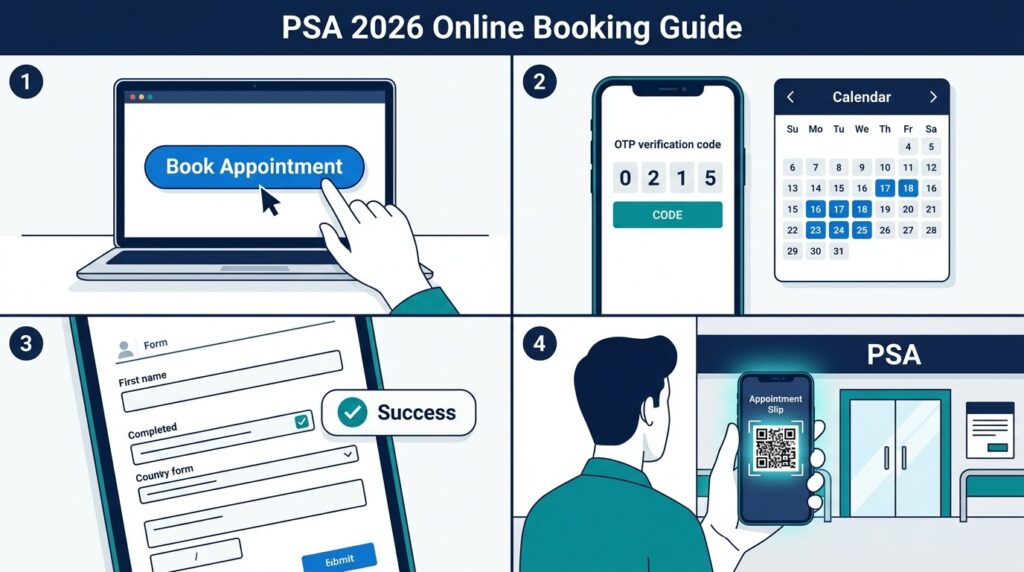
Scroll down. Look for the blue button that says “Book Appointment.” Click it.
Step 3: Agree to the Notice
A pop-up shows up. Click “I Agree.” Move on.
Step 4: Read the Reminders
Another screen with reminders. Read them. Click “Next.”
Step 5: Pick the Purpose
Dropdown menu. Choose why the appointment is needed. PSA Marriage Certificate. Death Certificate. CENOMAR. CENODEATH. Click “Next.”
Step 6: Choose Where to Go
The first dropdown is for the region. Pick one. A second dropdown appears. That one shows all PSA outlets in that region. Pick the nearest branch.
The address shows up with a tiny map. Click “Next.”
Step 7: Type Personal Info
First name. Middle name. Last name. Email. Mobile number.
This matters: The name must match the government ID exactly. No nicknames. No shortcuts.
Check the small box at the bottom. Click “Next.”
Step 8: Enter the OTP Code
A 6-digit code gets sent to the email and phone. Check both. Enter the code. Click “Verify.”
Code not showing up? Wait two minutes. Hit resend. Still nothing? Check the spam folder. For texts, make sure the phone has a signal.
Step 9: Tell Them What Certificate
Select the certificate type. Birth. Marriage. Death. CENOMAR. CENODEATH.
Select the relationship to the person. Self. Parents. Child. Spouse. Representative.
Type the full name of the person on the certificate. Spell it right.
Need more than one certificate? Click “Add Another Certificate” before moving on.
Step 10: Pick a Date
A calendar shows up.
- Blue dates = open slots
- Gray dates = full or closed
Click any blue date that works.
Step 11: Pick a Time
Available times appear after picking the date.
- Morning: 8 AM to 12 PM
- Afternoon: 1 PM to 5 PM
Each slot shows how full it is. Click an open time.
Step 12: Double Check Everything
A summary screen shows all the details. Name. Outlet. Address. Date. Time. Certificate type. Contact info.
Check every single field. Mistakes found now can be fixed. Mistakes found after confirmation mean canceling the whole thing and starting over.
Click “Confirm.”
Step 13: Done
A confirmation message appears. An email also arrives. That email has the appointment details and a link to the slip.
No email in five minutes? Check spam. Still nothing? The slot didn’t save. Start over.
Step 14: Save the Slip
The appointment slip has a QR code and all the booking info.
Save it in three ways:
- Print it
- Screenshot it on the phone
- Keep the email
Step 15: Know the QR Code Rules
That QR code is the entry pass. PSA staff scan it at the door.
Rules:
- Can’t transfer it to someone else
- Only works for the person named on the slip
- Only valid on the scheduled date
- Only valid at the chosen branch
No QR code. No entry. That’s it.
What to Bring on the Day
Don’t show up empty-handed.
Bring these:
- Appointment slip with QR code (printed or on phone)
- Original government ID (not a photocopy)
- Exact cash for the certificate
Fees (paid at the outlet):
- Birth certificate – ₱155
- Marriage certificate – ₱155
- Death certificate – ₱155
- CENOMAR – ₱210
- CENODEATH – ₱210
Show up fifteen minutes early. Late arrivals lose the slot. No exceptions.
Problems and Fixes
OTP code not coming
Check spam. Make sure the mobile number is right. Wait two minutes. Hit resend. Still nothing? Start over.
No slots available
Metro Manila branches fill up fast. Try outlets outside NCR. Check early morning (8 AM) or late at night. Try Tuesday through Thursday.
Confirmation email missing
Check spam. Not there? The slot didn’t save. Rebook. Double-check the email address.
Pop-up blocked
The slip shows up in a pop-up. If nothing happens, check browser settings and allow pop-ups for the site.
Name mismatch
Use exactly what’s on the ID. No extra spaces. No special characters. No nicknames.
Quick Checklist
Before starting:
- Full name ready
- Email and phone ready
- Certificate type known
- Outlet chosen
During booking:
- Name matches ID
- OTP entered right
- Date and time picked
- Details reviewed
After booking:
- Slip saved
- QR code accessible
- ID ready
- Cash prepared
FAQs
Q1: How long does booking take?
Under ten minutes if everything is ready.
Q2: Is there a fee to book?
No. Free. Pay only for the certificate at the outlet.
Q3: Can the date be changed?
No. Cancel using the link in the email. Then book a new one.
Q4: Multiple certificates in one appointment?
Yes. Click “Add Another Certificate” during step 9.
Q5: Do Senior citizens need an appointment?
Yes. Priority lane at the outlet. Bring a senior citizen ID.
Final Word
Booking a PSA appointment takes about ten minutes. No fees. No app. No walk-ins. Save the QR code. Bring a valid ID. Show up on time. That’s the whole guide.