Best Free Screen Recording Software in 2026 (No Catch)
Recording your screen sounds like it should be simple and then the export finishes with a logo stamped in the corner or the clip cuts off at five minutes right when you were getting to the point. Several genuinely free screen recorders exist with no watermark and no time limit but plenty of tools marketed as free quietly are not, once you actually try to export something. This guide compares the best free screen recording software in 2026 honestly, including which tools are actually unlimited and which ones save the catch for the fine print.
What Actually Matters in a Free Screen Recorder
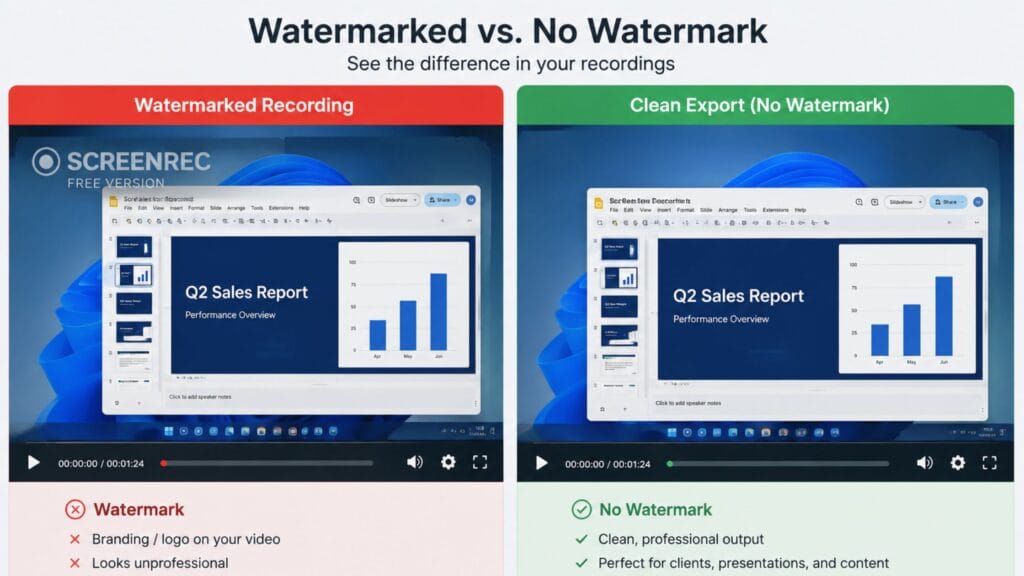
Three separate claims get bundled together under the word free in this category and they do not always travel together. No watermark means nothing is stamped over your export. No time limit means a recording can run as long as your hardware allows rather than cutting off at an arbitrary number of minutes. No resolution cap means you can actually export at the quality you recorded in rather than getting downgraded on the way out.
A tool can genuinely deliver on one of these and quietly fall short on another, which is exactly why so many comparison pages end up recommending tools that surprise people at export time. Checking all three specifically, rather than trusting the word free on its own, is the difference between picking a tool once and picking a tool you end up replacing after your first real project.
How We Picked These Tools
Every tool on this list was checked specifically for watermarks, maximum recording length and export resolution on its actual free tier rather than a trial period. Tools were also judged on setup time and platform coverage, since the right recorder for a quick five-minute bug report is rarely the same one you would choose for a full course or a long gameplay stream.
Quick Comparison Table
| Tool | Best For | Watermark | Time Limit |
| OBS Studio | Serious, unlimited recording on any platform | None | None |
| ShareX | Lightweight recording and screenshots on Windows | None | None |
| Xbox Game Bar | Zero-setup recording built into Windows | None | Up to several hours |
| macOS Screenshot Toolbar / QuickTime | Zero-setup recording built into Mac | None | None |
| Loom | Quick, shareable async video messages | Branding on free tier | 5 minutes per video, 25 videos |
| ScreenPal | Simple recording with light built-in editing | None on most plans | 15 minutes per recording |
OBS Studio: Best Overall, Genuinely Unlimited
OBS Studio is the consistent top pick across nearly every comparison in this category and for good reason. The OBS Project’s own site describes it as free and open source software for video recording and live streaming, with no separate paid tier, no watermark and no vendor-enforced cap on recording length, meaning your hardware and storage are the only real limits.
It supports multiple video and audio sources at once, independent audio mixing across several tracks, scene switching and recording up to 4K resolution, which covers everything from a simple tutorial to a full multi-source livestream setup. The tradeoff is a genuine setup process, configuring scenes, sources and audio levels takes real time for a first-time user and OBS has no built-in editor, so you will need a separate tool to trim or polish the footage afterward.
ShareX: Best Lightweight Option for Windows
ShareX is a free, open source Windows tool that handles both screen recording and screenshots without a watermark or a recording time limit and its setup takes a fraction of the time OBS requires. For quick captures, bug reports or short tutorials where OBS would be overkill, ShareX gets you from opening the app to a finished file noticeably faster.
It lacks OBS’s advanced multi-source and streaming capabilities, which makes it a better fit for straightforward screen capture than for a livestream or a complex multi-camera setup. For Windows users who want something free, fast and genuinely unrestricted without a learning curve, ShareX is one of the more consistently recommended lightweight options available.
Built-In Options: Xbox Game Bar and macOS Screenshot Toolbar
Windows 11 includes Xbox Game Bar as a built-in recorder accessible with a simple keyboard shortcut, requiring no download or setup at all and it records without a watermark for several hours before hitting its limit. It works well for quick, no-friction captures, though it lacks the source flexibility and audio control of a dedicated tool like OBS.
macOS includes a similarly friction-free option through its built-in screenshot toolbar or QuickTime Player, both accessible without installing anything and both export without a watermark or a time limit. For anyone who just needs a clean recording today without evaluating a single third-party tool, the built-in option on your existing operating system is worth trying before you look anywhere else.
Loom and ScreenPal: Free Tiers With Real Catches
Loom is genuinely useful for quick, shareable video messages sent directly as a link rather than a downloaded file, which fits async team communication well. Its free Starter plan caps individual recordings at 5 minutes, limits you to 25 stored videos total, restricts quality to 720p and includes Loom branding, all real constraints worth knowing before you record something you actually need to keep.
ScreenPal takes a similar approach, offering simple recording with light built-in editing on a free tier that caps individual recordings at around 15 minutes. Both tools are reasonable choices for short, disposable or shareable content specifically but neither is a fair substitute for a genuinely unlimited tool if you are recording a full course, a long gameplay session or anything you plan to keep and reuse.
What Free Really Means: Watermarks, Time Limits and Resolution Caps
OBS Studio, ShareX, Xbox Game Bar and the macOS built-in tools all deliver on all three fronts at once: no watermark, no time limit and no resolution cap on their free tier, since none of them have a paid tier gating those features in the first place. Loom and ScreenPal are free in a narrower sense, useful and genuinely free to start but with real limits that show up the moment your recording runs long or you need to keep more than a handful of videos.
Neither category is wrong for every use case. A quick, disposable message to a coworker does not need OBS’s unlimited 4K recording and a full multi-hour course does not belong on a tool that cuts you off at five minutes. Matching the tool’s actual limits, not just the word free on its landing page, to what you are actually recording avoids the most common frustration in this category.
Recording System Audio and Microphone Together
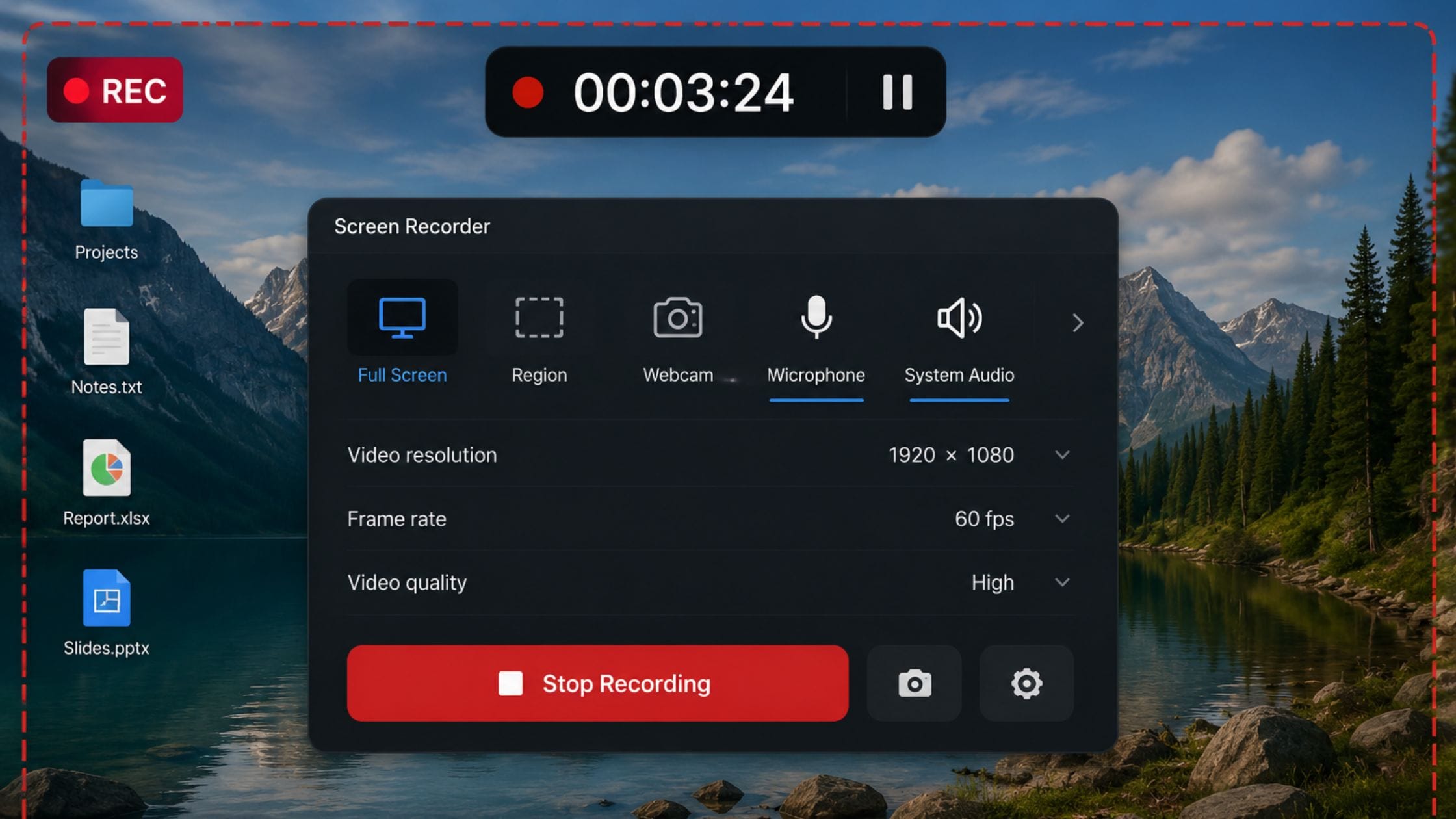
A surprising number of free screen recording software options handle audio inconsistently, capturing your microphone clearly while missing system audio entirely or the reverse, which matters a great deal for a tutorial that relies on both your narration and sounds from the screen itself. OBS Studio handles this well through its mixer, letting you add separate audio sources for microphone and desktop audio and adjust each independently before recording even starts.
ShareX and the built-in Windows and Mac recorders generally capture both sources by default without much configuration, though the option to adjust levels independently is more limited than what a dedicated tool like OBS offers. If your recordings depend on getting the balance between narration and system sound right, testing this specifically before committing to a tool saves a re-record later.
Screen Recording for Gaming and High-Motion Content
Gameplay and other high-motion recordings put more strain on a screen recorder than a typical tutorial does, since dropped frames and stuttering become far more noticeable when the whole screen is moving rather than a mostly static desktop. OBS Studio remains the strongest free option here too, with hardware encoding support for modern GPUs that keeps frame rates smooth without hammering your CPU the way software encoding can.
Xbox Game Bar is a reasonable lighter alternative specifically for casual gameplay capture on Windows, since it is built into the operating system and optimized for exactly this use case, though it offers far less control over encoding settings than OBS. For competitive or high-quality gameplay content meant for actual publishing rather than a quick clip, the extra setup time OBS requires tends to be worth it.
How to Pick the Right Recorder for Your Use Case
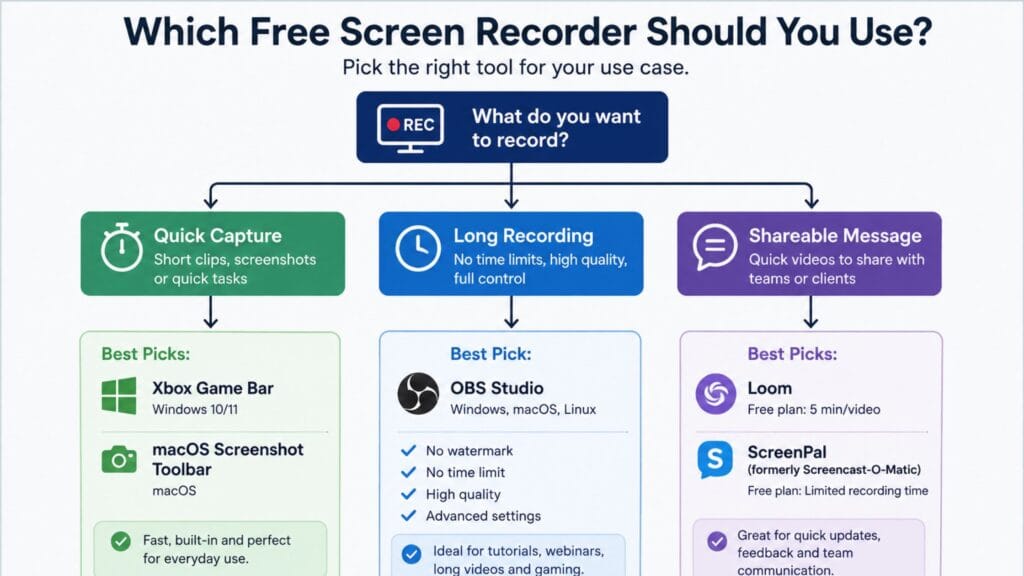
Choose OBS Studio if you need genuinely unlimited recording length, multiple audio sources or the option to livestream later and you are willing to spend some time on initial setup. Choose ShareX if you are on Windows and want something almost as unrestricted with a much faster setup for straightforward captures.
Choose your operating system’s built-in tool, Xbox Game Bar on Windows or the screenshot toolbar on Mac, if you need a clean recording right now with zero setup and no third-party download. Choose Loom or ScreenPal specifically for short, shareable async messages where the time cap genuinely does not matter, not for anything longer or anything you plan to keep long-term.
Once your screen recording is captured, trimming it down, adding transitions or layering in captions is the natural next step and our best free video editing software guide picks up exactly where this one leaves off, covering the same watermark and export-limit honesty for editors instead of recorders.
For styling any on-screen text or titles you add afterward, it is worth exploring the wider collection of free text and font generator tools available on the same site.
FAQs
What is the best free screen recording software overall?
OBS Studio is the most consistently recommended overall pick, since it is fully free and open source with no watermark, no time limit and no resolution cap on any part of the tool. It has a real setup process, so ShareX or your operating system’s built-in recorder are worth trying first if you just need something quick.
What is the best free screen recorder with no time limit?
OBS Studio, ShareX and the built-in recorders on Windows and macOS all record without a time limit on their free tier. Loom and ScreenPal both cap individual recordings, at 5 minutes and roughly 15 minutes respectively, so they are not a fit for long recordings.
Is there a genuinely free screen recorder with no watermark for Windows?
Yes, OBS Studio, ShareX and Xbox Game Bar all export without a watermark on Windows and all three are free with no paid tier required to remove branding. Xbox Game Bar requires no download since it ships with Windows 11.
Is there a genuinely free screen recorder with no watermark for Mac?
Yes, OBS Studio runs natively on macOS with no watermark and the built-in screenshot toolbar and QuickTime Player also record without a watermark or forced time limit at no cost.
What is the best free screen recorder for beginners?
Your operating system’s built-in recorder, Xbox Game Bar on Windows or the screenshot toolbar on Mac, is the easiest starting point since it requires no download or configuration. ShareX is a close second for Windows users who want a bit more control without OBS’s steeper learning curve.
Why do some free screen recorders have such short time limits?
Tools like Loom and ScreenPal are built around a freemium business model, where the free tier is genuinely useful but deliberately limited to encourage upgrading to a paid plan for longer or unlimited recordings. Fully open source tools like OBS Studio and ShareX have no paid tier to push you toward, so there is no time limit to enforce in the first place.
Conclusion
The best free screen recording software in 2026 depends on how long your recording actually needs to be and how much setup time you are willing to spend upfront. OBS Studio remains the strongest genuinely unlimited option for anything serious, ShareX and your operating system’s built-in tools cover quick captures with almost no setup and Loom or ScreenPal are worth reaching for specifically when a short, shareable message is all you need.
If this comparison helped you avoid an unexpected watermark or a recording that cut off too soon, share it with someone still recording their tutorials in five-minute chunks or drop a comment with the tool that ended up sticking in your workflow.