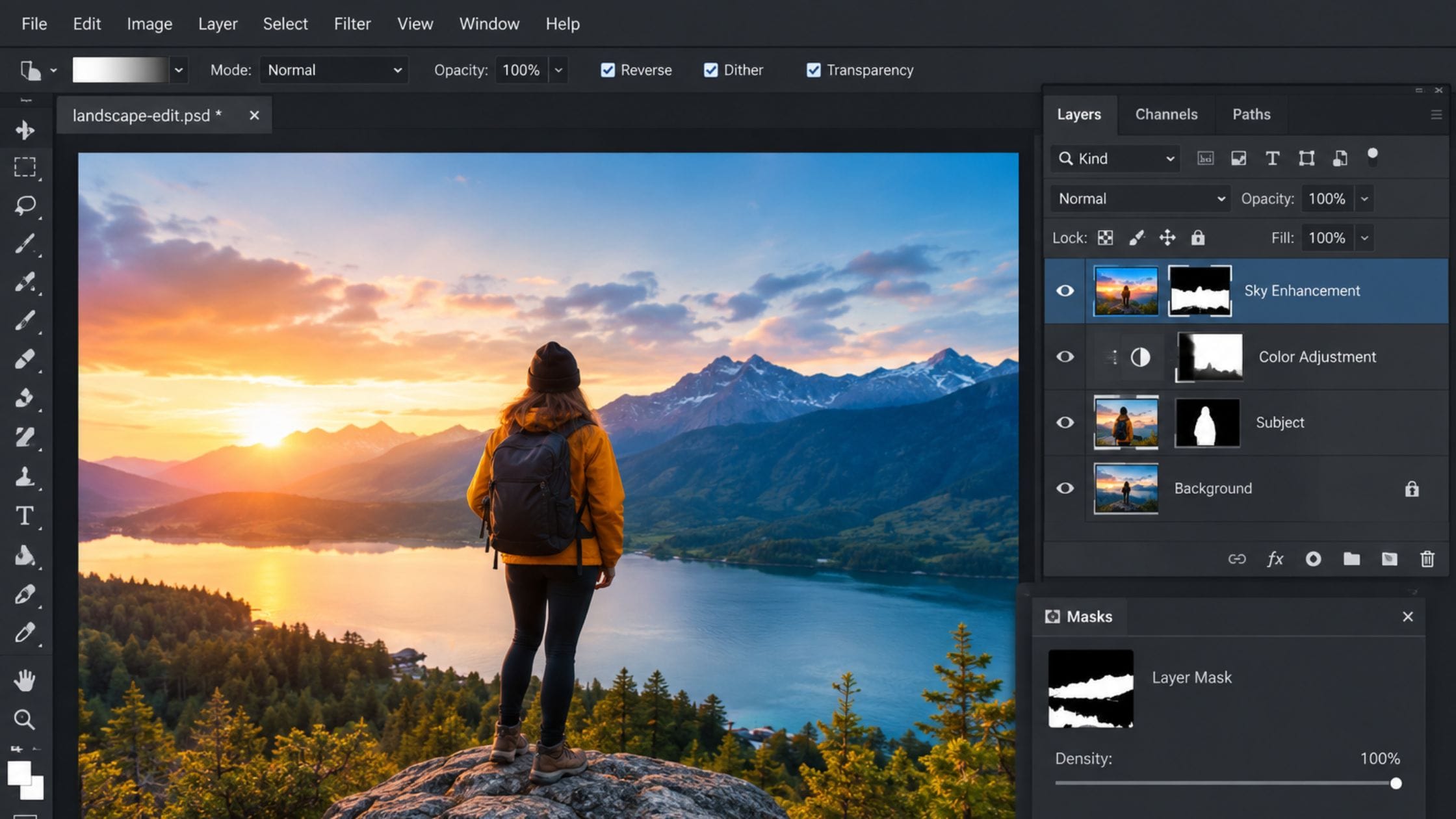
Best Free Photo Editing Software in 2026, Tested for Real
Photoshop’s subscription runs over 20 dollars a month for a tool most people use for cropping, color correction and the occasional layer mask, which is exactly the gap free photo editors have spent the last few years closing. Unlike free video editing software, where a watermark is the standard catch, the real limits in this category tend to be quieter, an ad-supported session, a capped file size or a feature that only half-works without paying. This guide compares the best free photo editing software for 2026 and covers exactly where each one’s real limit actually sits.
Free Photo Editors Have a Different Catch Than Free Video Editors
Anyone who has already compared free video editing software knows the drill: check for a watermark, check the export resolution cap, check whether the time limit is real. Free photo editors mostly skip that pattern entirely. Standard PNG and JPG exports from GIMP, Photopea, darktable and most of the tools in this category carry no watermark and no hard resolution ceiling on the free tier.
That does not mean these tools are limitless. The restrictions in this category tend to live somewhere quieter, an ad-supported browser session, a file size cap on uploads or an AI feature that behaves differently from the rest of the editor and those details are exactly what most comparison pages flatten into a single free or not-free label.
How We Picked These Tools
This list favors tools with a genuinely usable free tier rather than a time-limited trial and each entry was checked specifically for watermarks on standard exports, file size or resolution caps and whether advertising or upsell prompts get in the way of actual editing. Tools were also judged on RAW file support and PSD compatibility, since those two details determine whether a free tool can realistically replace Photoshop or Lightroom for a specific workflow rather than just handling casual edits.
Quick Comparison Table
| Tool | Best For | Watermark | Real Limit on Free Tier |
| GIMP | Full Photoshop-style editing, offline | None | Steep learning curve, not a limit exactly |
| Photopea | Photoshop interface in a browser, PSD files | None on standard exports | Ads, 10MB file cap, some AI exports watermarked |
| darktable | RAW processing, Lightroom-style workflow | None | Steep learning curve for non-photographers |
| Paint.NET | Simple edits, lighter than GIMP | None | Windows only, fewer advanced tools |
| PhotoScape X | Batch resizing, collages, quick retouching | None | Pro upgrade adds extra filters, not required |
| Snapseed | Mobile editing on iOS and Android | None | Mobile only, no desktop version |
GIMP: The Closest Thing to a Free Photoshop
GIMP has been the default free Photoshop alternative for over two decades and the version 3.0 rewrite finally modernized both its interface and its non-destructive editing workflow. GIMP’s own project site describes it as free and open source under the GPL, with full layer, mask and curve support, advanced selection tools and a plugin ecosystem built by a long-running community, all with no account, no ads and no watermark on anything you export.
The tradeoff is genuinely the learning curve rather than any hidden restriction, since GIMP’s tools and terminology diverge from Photoshop’s enough that switching over takes real adjustment time. For anyone willing to spend that time, it remains the most complete free photo editor available on any platform.
Photopea: Photoshop’s Interface, Running in a Browser Tab
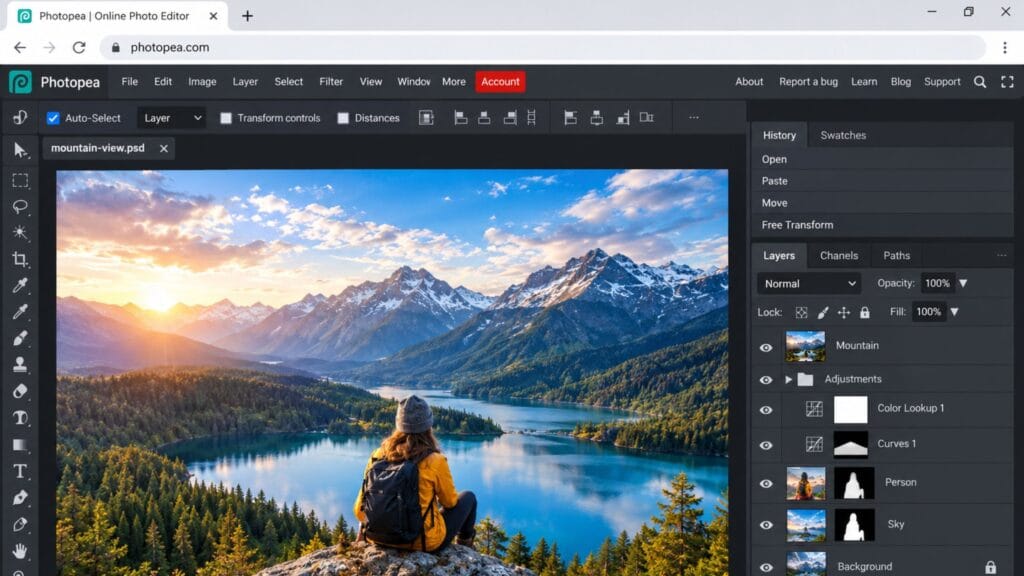
Photopea reproduces Photoshop’s layout and keyboard shortcuts closely enough that switching over feels closer to a software update than a new tool and it opens native PSD, AI, XD, Sketch and PDF files directly without any conversion step. For anyone who already knows Photoshop and just does not want to pay for it, that familiarity is the entire appeal.
This is also where the real limits in this category actually show up. Standard PNG and JPG exports carry no watermark but the free version displays ads throughout the editing session, caps uploaded file size at 10MB and watermarks certain AI-generated outputs specifically, a distinction most comparison pages skip when they simply label the whole tool watermark-free. None of that makes Photopea a bad choice but it is worth knowing before you start a project on a file larger than the cap allows.
Darktable and RawTherapee: When RAW Processing Is the Actual Job
Photographers shooting RAW need a different kind of tool than a general photo editor and darktable and RawTherapee both fill the role Lightroom plays in a paid workflow, non-destructive editing, RAW-specific processing modules and library tools for organizing and tagging a real photo collection. Darktable adds parametric masking and a tethering module for studio shooting, while RawTherapee focuses more narrowly on best-in-class RAW conversion.
Both have a steeper learning curve than a general editor like GIMP, partly because RAW processing itself involves more technical concepts, white balance, demosaicing, tone curves, than a typical photo edit. For anyone shooting RAW regularly, that learning investment pays off quickly compared to paying for Lightroom indefinitely.
Paint.NET: For When GIMP Is More Than You Need
Paint.NET covers layers, basic selection tools and common adjustments in an interface that feels closer to a more capable version of Microsoft Paint than a Photoshop competitor, which is exactly the point for anyone who finds GIMP’s depth overwhelming for simple tasks. Cropping, resizing, basic color correction and light retouching all take noticeably less time to learn here than in a full-featured editor.
It is Windows-only, which rules it out immediately for Mac or Linux users and its plugin ecosystem, while real, is smaller than GIMP’s. For a Windows user who only needs occasional, straightforward edits, that tradeoff is usually worth it.
PhotoScape X: Built for Batches, Not Single Edits
PhotoScape X does not try to compete with GIMP or Photopea on depth and instead focuses specifically on the repetitive tasks a general editor handles clumsily, batch resizing, collage creation, adding consistent frames or watermarks across dozens of images and quick one-off retouching. For anyone with a folder of product photos that all need the same crop and export settings, that specialization saves real time.
Its free tier covers most of what casual users need and the optional one-time paid upgrade adds extra filters rather than gating anything essential. It is a tool built around a specific job rather than a general Photoshop replacement and it is worth adding to a workflow alongside GIMP or Photopea rather than instead of one.
Snapseed: The One Genuinely Watermark-Free Mobile Option
Snapseed remains the strongest fully free option specifically for phone-based editing, with more than 30 tools and filters, RAW support, masking and batch editing built into a single app with no subscription, no in-app purchases and no watermark, confirmed directly on its current app store listing. For editing on the go without reaching for a laptop, it covers more genuine editing depth than most mobile apps in this category attempt.
The obvious limitation is that it is mobile-only, with no desktop counterpart, so anyone who needs the same workflow on a computer will still need one of the desktop tools covered above. For phone-first editing specifically, though, it is close to the mobile equivalent of what GIMP offers on desktop.
AI Features Are the Newest Wrinkle in This Category
Most free photo editing software released or updated in the past year has added at least one AI feature, background removal, object cleanup or a generative fill tool and these features behave differently from the rest of the software they sit inside. Adobe Express’s free background removal accepts JPEG, PNG and WebP files up to 40MB and exports a clean transparent PNG under its own stated conditions, a genuinely useful tool bundled into free photo editing software that otherwise focuses on templates rather than pixel-level editing.
Photopea’s AI outputs are the clearest example of the split behavior worth watching for: the core editor exports cleanly with no watermark but specific AI-generated results carry one on the free tier, a distinction that would be easy to miss if you only tested the manual editing tools. Before building a workflow around any AI feature specifically, test that exact feature with your own file rather than assuming it behaves the same as the rest of the editor around it.
What Free Actually Restricts in This Category
Across every free photo editing software option in this comparison, the pattern holds: standard photo exports do not carry watermarks, which puts this category in a genuinely different position than free video editing software, where watermarks on the free tier remain common. What actually restricts a free photo editor tends to be the editing experience itself, ads during a session, a file size cap, a steeper learning curve or a narrower feature set, rather than damage to the finished export.
That distinction matters when choosing a tool, since a watermark is an immediate dealbreaker while an ad-supported interface or a file size cap is something you can usually work around. Checking which category a tool’s real limit falls into, rather than assuming free always means watermarked, saves a wasted export and a second search for an alternative.
Matching a Tool to What You Are Actually Editing
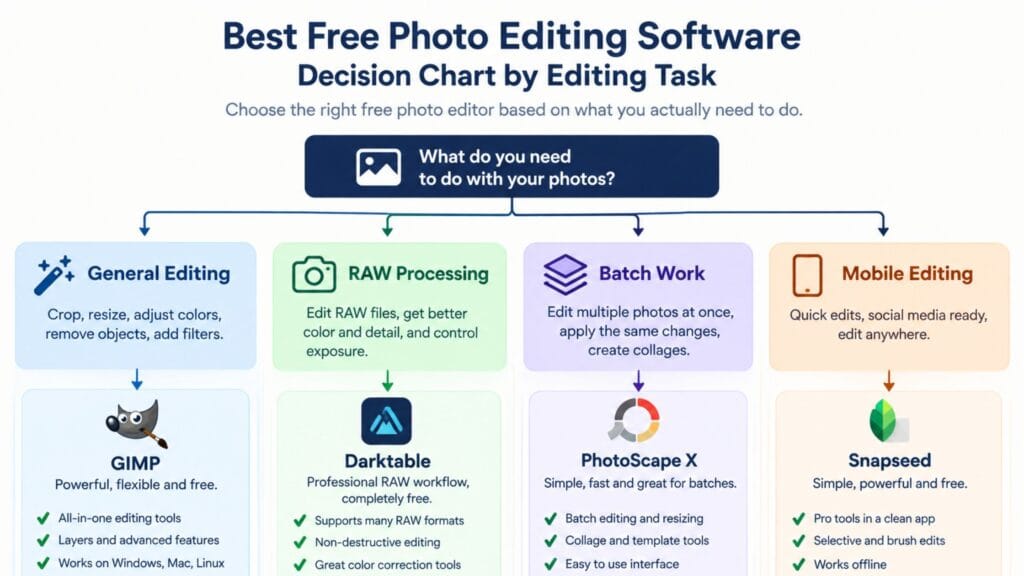
Choose GIMP if you want the most complete free editor and are willing to spend real time learning its workflow and choose Photopea instead if browser convenience and PSD compatibility matter more than owning your files locally, while keeping its 10MB cap and ad-supported session in mind. Reach for darktable or RawTherapee specifically if RAW processing is the actual job, not just an occasional file type you open.
Pick Paint.NET if GIMP feels like more tool than you need on Windows, PhotoScape X if batch processing dozens of images is a recurring task and Snapseed if most of your editing happens on a phone rather than a computer.
Photos are often the starting point for a bigger project. Our guides to the best free video editing software and the YouTube thumbnail maker comparison cover what to do with an edited photo once it becomes part of a video or a thumbnail and the free text and font tools on this site are worth a look for styling any text you add on top.
FAQs
What is the best completely free photo editing software?
GIMP remains the most complete option with no ads, no file size cap and no watermark on any export, covering nearly everything a paid tool like Photoshop offers. Its main tradeoff is a real learning curve rather than any hidden restriction.
Does Photopea really have no watermark?
Standard PNG and JPG exports from Photopea carry no watermark but the free version shows ads during editing, caps uploaded file size at 10MB and watermarks certain AI-generated outputs specifically, details most comparisons leave out when they call it simply watermark-free.
What is the best free photo editor for beginners?
Paint.NET and PhotoScape X are both easier starting points than GIMP for simple tasks like cropping, resizing and basic color correction, since their interfaces carry less of a learning curve than a full layer-based editor.
What is the best free alternative to Adobe Lightroom?
Darktable is the closest free equivalent to Lightroom, with non-destructive RAW processing, library organization and parametric masking. RawTherapee is a strong alternative focused more narrowly on best-in-class RAW conversion.
Is there a free photo editor that works well on mobile?
Snapseed is the strongest fully free mobile option, with more than 30 tools, RAW support and masking built in, confirmed by its app store listing to have no subscriptions, purchases, ads or watermarks.
Why don’t free photo editors watermark exports the way free video editors do?
It comes down to how each category’s free tier is typically funded. Photo editors more often rely on ads, file size caps or a steeper learning curve to differentiate free from paid, while video editing software has historically leaned on watermarks and resolution caps as the more common limit.
Conclusion
Free photo editing software has genuinely closed the gap with paid tools over the past couple of years and the real question is not whether a free option exists for your workflow but which specific limit, a learning curve, a file cap or an ad-supported session, you are willing to work around. Test the one that matches your actual editing task against your own files before assuming any single tool covers everything.