10 Best Free Design Tools for Non-Designers in 2026
You do not need a design degree to make something that looks professional in 2026. You need the right tool for the job and the gap between a cluttered flyer and a clean one is usually the software, not the skill. Most free design tools now handle the hard parts, spacing, alignment and color pairing, automatically, so your only real job is picking layouts and swapping in your own text and images. This guide covers the best free design tools for non-designers, what each one is actually good for and how to pick the right one for a specific project instead of guessing.
Why the Right Tool Matters More Than Skill
Design software used to assume a level of training most people never had, with blank canvases, dense toolbars and layer panels that made every project feel like starting from zero. Modern free design tools flip that model by starting you off with a finished layout and letting you adjust it, which means the software carries the design theory instead of you. That shift is the entire reason non-designers can now produce work that looks close to professional without years of practice.
The tradeoff is that different tools are good at different things and picking the wrong one for a project wastes more time than the software itself ever saves. A template-based tool like Canva is not the right choice for editing a photo layer by layer and a photo editor is not the right choice for building a slide deck. Matching the tool to the task is most of the battle.
How We Picked These Tools
Every tool on this list has a genuinely usable free plan, not just a time-limited trial that pushes you toward a subscription within a few minutes. Each one was judged on how quickly a first-time user can produce a finished result, how generous the free tier actually is once you hit real limits like exports and storage and whether it specializes in a task well enough to be worth a separate login from your main design tool. A few paid upgrades are mentioned where they matter but every entry here does real, usable work for free.
Quick Comparison Table
| Tool | Best For | Free Plan | Learning Curve |
| Canva | General graphics and templates | Generous | Very low |
| Adobe Express | Adobe-quality quick edits | Generous | Low |
| Microsoft Designer | AI-generated images and graphics | Generous | Very low |
| Photopea | Layer-based photo editing | Full features, ad-supported | Medium |
| Gamma | Presentations and pitch decks | Limited credits | Very low |
| Piktochart | Infographics and data visuals | Limited exports | Low |
| GIMP | Advanced open source photo editing | Fully free | Medium to high |
| Inkscape | Vector graphics and logos | Fully free | Medium to high |
Canva: Best All-Around Free Design Tool
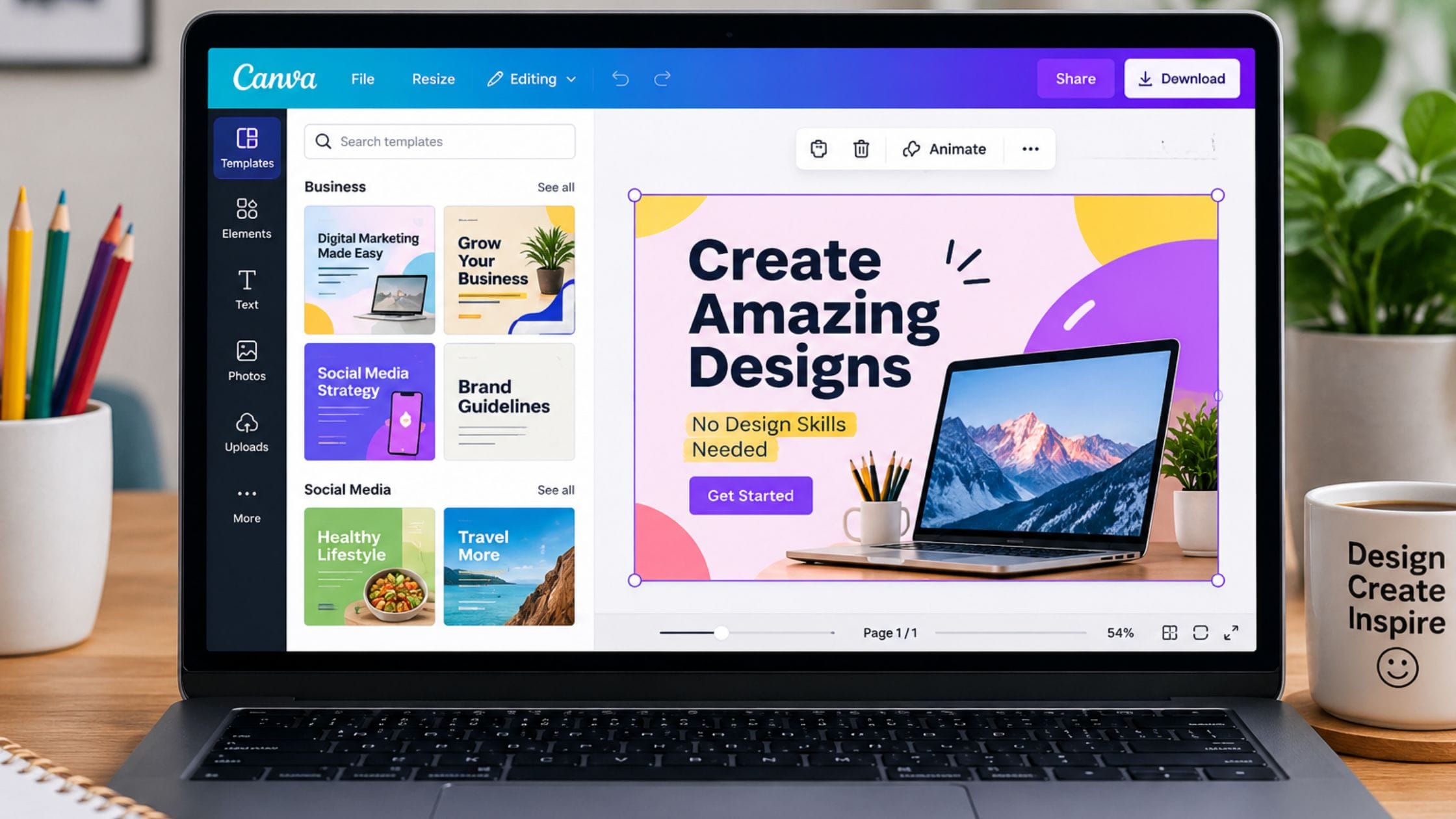
Canva remains the safest starting point for most non-designers because it covers the widest range of formats in one place, from Instagram posts to resumes to printed flyers. Canva’s own template library spans hundreds of thousands of ready-made designs across nearly every common format and the drag-and-drop editor makes swapping text, colors and images genuinely simple even on a first visit.
The free plan includes a large library of templates, stock photos and basic AI features, which covers most everyday design needs without ever hitting a paywall. Paid plans mainly unlock premium photo and video assets, a background remover and brand kit tools for teams, which only start to matter once design work becomes a regular part of your job.
Adobe Express: Best for Adobe-Quality Templates
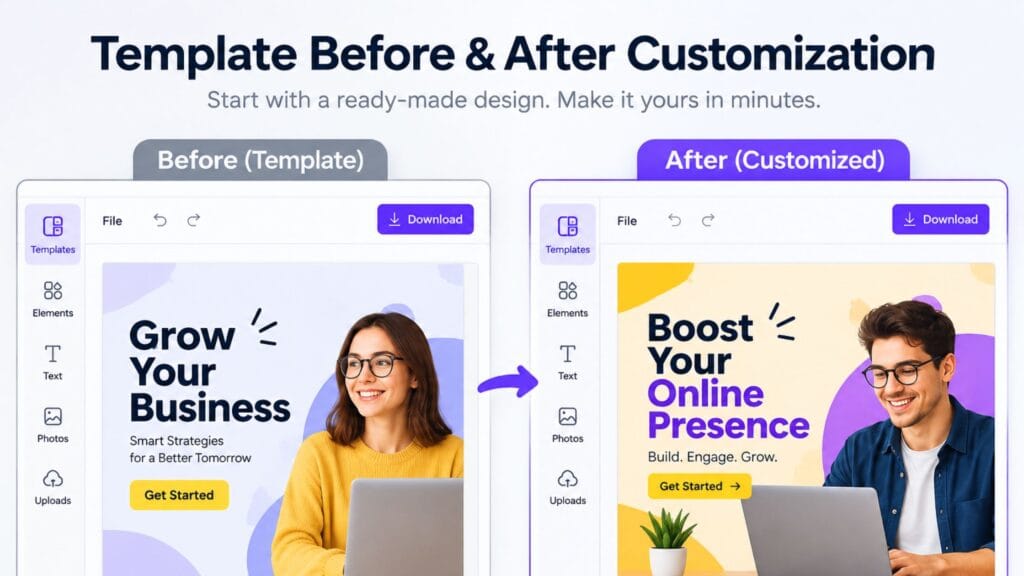
Adobe Express brings a simplified version of Adobe’s professional design tools to non-designers, with the same attention to color and typography that Photoshop and Illustrator users expect, packaged into a much simpler interface. It works especially well for social media graphics and quick marketing materials where a polished, on-brand look matters more than deep customization.
Because it is built by Adobe, it integrates cleanly with Adobe Stock and Adobe Fonts and exported files tend to hold up well if you later hand a project to a professional designer working in the full Adobe suite. The free plan covers templates, basic editing and a reasonable amount of stock content, which is enough for most small business and personal projects.
Microsoft Designer: Best Free AI Image Generation
Microsoft Designer focuses on generating a finished design from a short text prompt rather than starting you with a blank template to fill in. Describe what you need, a birthday card, a product graphic, a social post and it produces several complete layout options with matching colors and typography already applied. For anyone who struggles with the blank-page problem more than the editing itself, this is often the fastest way to get to a usable first draft.
The free plan includes a solid number of AI generations per month along with standard templates and editing tools, which makes it one of the more generous free AI design options available without a subscription.
Photopea: Best Free Photoshop Alternative in the Browser
Photopea replicates most of Photoshop’s core interface and tools directly in a browser tab, including layers, masks and support for opening actual PSD files without any conversion. If you occasionally need real photo editing, retouching or working with layered files someone else created in Photoshop, Photopea covers that need without installing anything or paying a subscription.
It has a steeper learning curve than a template-based tool like Canva, since it is closer to a genuine image editor than a design assistant. For non-designers who only need occasional photo edits, it is worth bookmarking for the moments a simpler tool cannot handle rather than using as a daily driver.
Gamma: Best for Presentations
Gamma builds presentations, documents and simple websites from an outline or a short prompt, handling slide layout, spacing and visual hierarchy automatically as you add content. Instead of manually resizing text boxes and aligning elements the way you would in a traditional slide tool, you focus on the content and let Gamma handle the layout decisions.
The free plan includes a limited number of AI credits per month, which is enough to build a few complete presentations before you would need to consider a paid plan. For anyone who dreads formatting slides more than writing them, Gamma removes most of that friction entirely.
Piktochart: Best for Infographics and Data Visuals
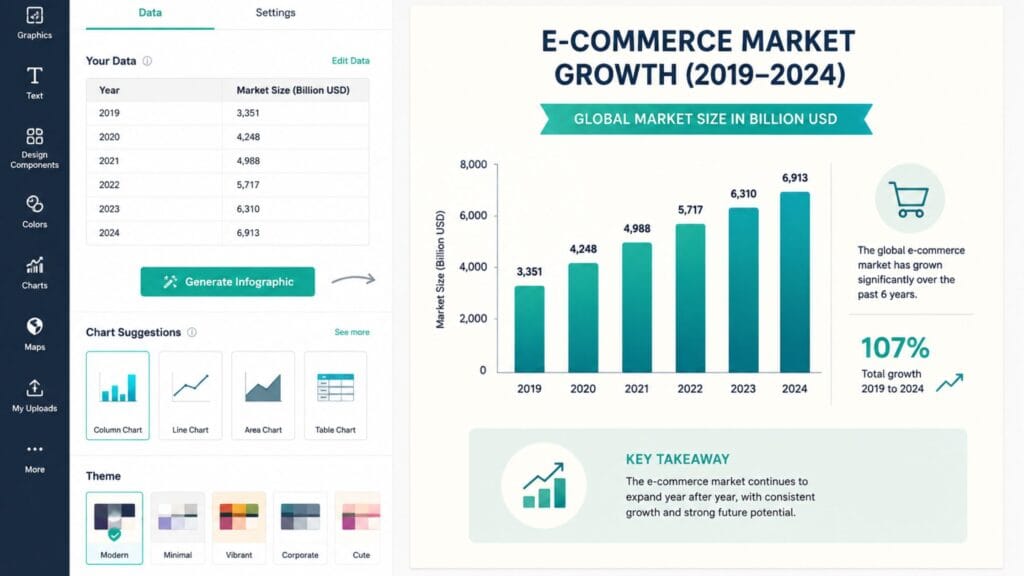
Piktochart specializes in turning numbers and text into a finished infographic, complete with charts, icons and a coherent layout, which is a format most general-purpose design tools handle poorly. Its AI feature can take a topic or an uploaded document and generate a starting infographic in under a minute, which you then adjust rather than build from scratch.
The free plan is worth knowing upfront: it allows only a small number of lifetime downloads rather than a monthly allowance, so it works best for an occasional infographic rather than regular use. If data visualization is not a frequent need, that limit is rarely a real problem.
GIMP and Inkscape: Best Free Open Source Options
GIMP is a fully free, open source alternative to Photoshop with genuine layer-based photo editing, filters and retouching tools that go well beyond what template-based tools offer. It has no usage limits, no subscription and no watermark, though its interface takes longer to learn than a browser-based tool built for beginners.
Inkscape covers the same territory for vector graphics that GIMP covers for raster images, making it a solid free option for logos, icons and scalable illustrations. Both tools reward the time you put into learning them with genuine professional-grade capability, which makes them worth trying once you outgrow what template tools can do.
How to Pick the Right Tool for Your Project
Start with Canva if you are not sure what you need yet, since it covers the widest range of formats and has the gentlest learning curve of anything on this list. Reach for Adobe Express instead when brand consistency and a slightly more polished look matter more than raw template variety.
Use Microsoft Designer or Gamma when the blank page itself is the obstacle, since both tools generate a finished starting point from a short prompt rather than asking you to pick a template first. Use Piktochart specifically when you are turning numbers into a chart-heavy graphic, since general tools rarely handle that format as cleanly.
Save Photopea, GIMP and Inkscape for the moments you need real layer-based editing or vector work, since both take longer to learn but do things template tools simply cannot. Most non-designers end up using two or three of these tools regularly rather than picking just one and that combination covers nearly every common design task without ever paying for software.
If your projects also involve styled or stylized text rather than full graphics, the Brat Generator homepage has free tools built specifically for bold, social-ready text and captions. And if you are also setting up a workspace for coding-adjacent creative work, our guide to the best VS Code extensions covers the developer side of a similar setup problem.
FAQs
What is the best free design tool for a complete beginner?
Canva is the best starting point for a complete beginner because it uses ready-made templates and a simple drag-and-drop editor that requires no prior design knowledge. Microsoft Designer is a close second if you would rather describe what you want and let AI generate the first draft.
Can I really create professional-looking designs for free?
Yes, the free plans on tools like Canva, Adobe Express and Microsoft Designer cover templates, basic editing and enough stock content to produce professional-looking results for most everyday projects. Paid plans mainly add convenience features like premium assets and brand kits rather than unlocking design quality itself.
What is the difference between Canva and Photopea?
Canva is a template-based design tool built around picking a layout and customizing it, while Photopea is a genuine photo editor with layers, masks and Photoshop-style tools. Choose Canva for quick graphics and Photopea when you need to actually edit a photo in detail or open a layered PSD file.
Which free tool is best for making a presentation?
Gamma is the best free option specifically for presentations, since it builds slide layouts automatically from an outline or a short prompt rather than requiring manual formatting. Canva also has strong presentation templates if you prefer more manual control over each slide.
Do free design tools add a watermark to my work?
It depends on the tool and the specific asset. Canva and Adobe Express generally do not watermark your final export unless you use a premium element without paying for it, while GIMP and Inkscape never add watermarks since they are fully open source with no paid tier at all.
Is it worth learning GIMP or Inkscape if I am not a designer?
It depends on how often you need photo or vector editing. If you occasionally need a quick graphic, a template tool like Canva will always be faster but if you regularly edit photos or build logos, the time invested in learning GIMP or Inkscape pays off with capability template tools cannot match.
Conclusion
The best free design tools for non-designers in 2026 remove the part of design that used to require training, spacing, alignment and color theory and let you focus on the part that only you can do, choosing what the design should say. Start with Canva for general work, add Microsoft Designer or Gamma when a blank page is the real obstacle and keep Photopea or GIMP bookmarked for the occasional photo edit a template cannot handle.
If this guide helped you find the right tool for your next project, share it with someone who still thinks they need a design degree to make something good or drop a comment with the tool that ended up in your regular rotation.