Best Free Video Editing Software in 2026 (No Watermark)
A watermark stamped across your export used to be the price of using free video editing software and for some tools it still is. The good news is that several genuinely capable, completely free editors now exist with no watermark, no forced trial and no hidden export cap, though which one counts as free varies more than most comparison pages admit. This guide tests the claims, covers what free video editing software actually gives you in 2026 and compares the best options by platform and skill level.
What Actually Matters in a Free Video Editor
Two claims get used almost interchangeably in this category and they are not the same thing. No watermark means your export has no logo or badge stamped over it, which several tools genuinely deliver on their free tier. No real limits is a separate, bigger claim, since a watermark-free export capped at 1080p or restricted to short clips is still a meaningfully limited free tier even without a logo in the corner.
Learning curve is the other major factor most comparisons underweight. A tool with every professional feature is not automatically the right pick if it takes weeks to become comfortable in, especially for a creator who needs a finished video today rather than a new skill this quarter.
How We Picked These Tools
Every editor on this list needed a genuinely free tier rather than a time-limited trial and each one was checked specifically for watermarks, maximum export resolution and any feature gating that only shows up once you try to save your final file. Tools were also judged on platform coverage and learning curve, since the best free video editing software for a fast TikTok clip and the best one for a short film are rarely the same answer.
Quick Comparison Table
| Editor | Best For | Watermark | Max Free Export |
| DaVinci Resolve | Professional color grading and full editing suite | None | 4K, no time limit |
| CapCut | Fast social media and TikTok-style edits | None on basic edits, some premium templates | 1080p on the free tier |
| iMovie | Mac and iPhone users who want simplicity | None | 4K on compatible Apple hardware |
| Clipchamp | Windows users who want a built-in option | None | 1080p on the free tier |
| Shotcut | Open source editing on Windows or Linux | None | 4K, no time limit |
| Kdenlive | Open source editing with more advanced tools | None | 4K, no time limit |
| OpenShot | Absolute beginners on any platform | None | 4K, no time limit |
DaVinci Resolve: Best Overall, No Watermark
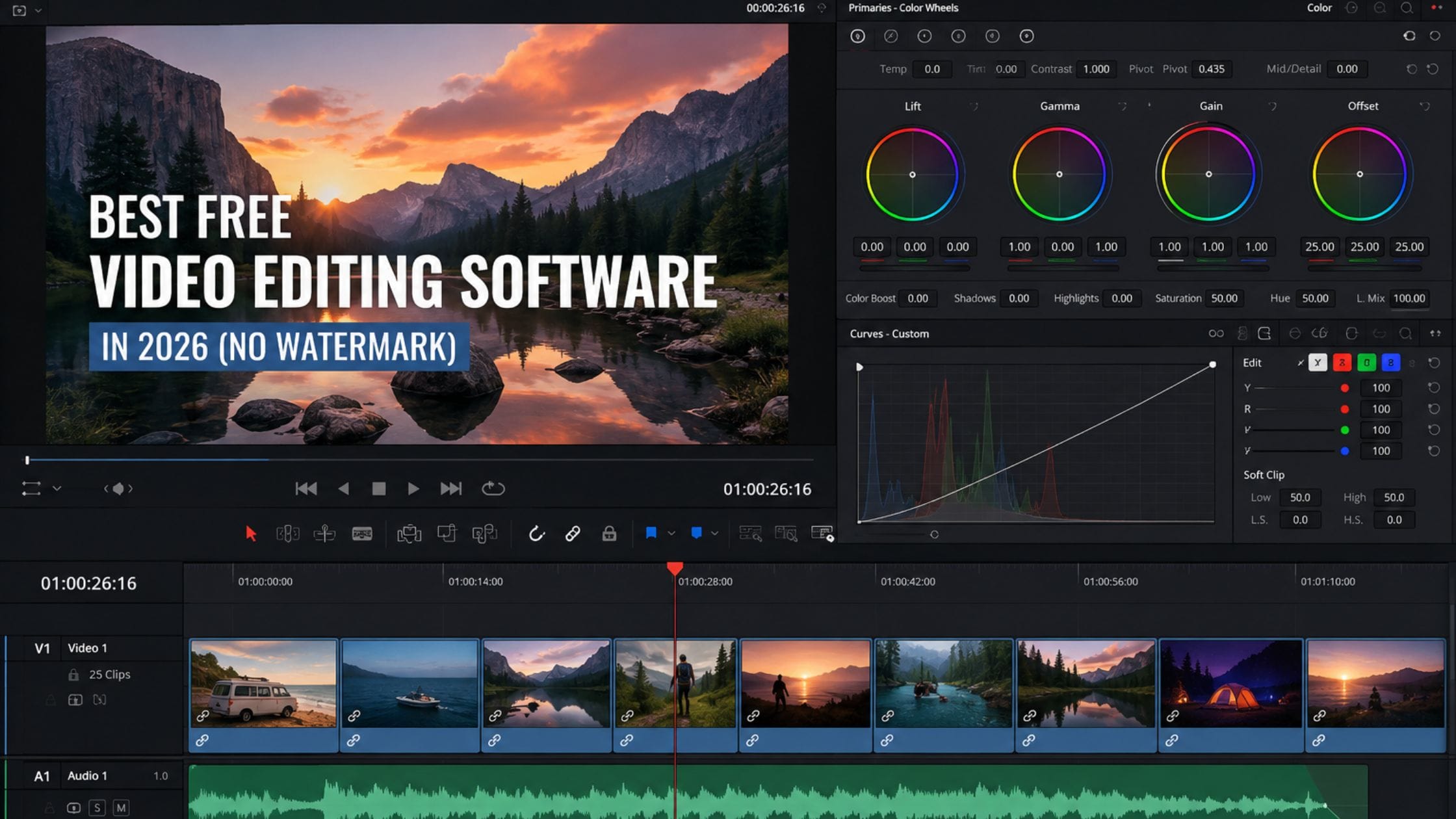
DaVinci Resolve’s free tier is the most complete professional-grade editor available at no cost and its color grading engine specifically is built from the same underlying tools used on real film and television productions. Blackmagic Design’s own product page confirms the free version includes the full editing timeline, the Fairlight audio suite and the Fusion visual effects and motion graphics workspace, exporting up to 4K resolution with no watermark and no time limit.
The tradeoff is a genuine learning curve, since Resolve’s interface is built around a professional workflow with several distinct pages for editing, color, audio and effects, which most reviewers estimate takes somewhere between 5 and 10 hours to become comfortable navigating. For anyone willing to invest that time, it remains the strongest free option on this list by a clear margin.
CapCut: Best for Social Media (With a Caveat)
CapCut remains the fastest path from raw footage to a published TikTok, Reel or YouTube Short, with an interface built specifically around short-form social content and a genuinely useful set of built-in AI tools for captions, transitions and basic enhancement. For creators who need something finished today without a tutorial, it consistently ranks as the quickest option across nearly every comparison in this category.
Two things are worth knowing before you commit to it as your main editor. Its free tier caps exports at 1080p, with full 4K gated behind a paid plan, which most comparison pages do not make clear upfront. Its ownership by ByteDance has also drawn scrutiny in the United States over the past couple of years and while the app remains available as of this writing, it is worth being aware of that context if platform stability matters for your workflow.
iMovie and Clipchamp: Best Built-In Options by Platform
iMovie comes preinstalled on every Mac and iPhone and its free tier has no watermark, a genuinely clean timeline and reliable color correction that covers most everyday editing needs without asking you to learn anything close to a professional workflow. On compatible Apple hardware it exports up to 4K, which is more than most casual creators will ever need.
Clipchamp ships built into Windows 11 and offers a similarly approachable interface with no watermark on standard exports, though its free tier caps resolution at 1080p rather than the full 4K some competitors on this list offer. For Windows users who want something already installed with zero setup, Clipchamp is the more convenient starting point, with Shotcut or Kdenlive as the next step once 1080p starts feeling limiting.
Shotcut and Kdenlive: Best Open Source Picks
Shotcut is a stable, fully open source editor available on Windows, Mac and Linux with no watermark, no time limit and full 4K export on its completely free tier, since there is no paid tier at all. Its interface sits comfortably between CapCut’s simplicity and DaVinci Resolve’s depth, which makes it a reasonable middle option for Windows and Linux users who want more control than a beginner tool offers without Resolve’s steeper learning curve.
Kdenlive covers similar ground with a somewhat more advanced feature set, particularly for Linux users and both tools are released under the GNU GPL license, meaning commercial use of anything you create with them carries no licensing fee or attribution requirement. Neither tool asks anything in exchange for its full feature set, which is a genuinely different model from the freemium approach most competitors on this list use.
OpenShot: Best for Absolute Beginners
OpenShot targets the same simplicity as iMovie or CapCut but stays fully open source and cross-platform, with a free-forever tier that includes no restrictions on features or usage and full 4K export with no watermark. Its interface leans toward drag-and-drop simplicity over professional depth, which makes it a reasonable first editor for someone who has never touched video editing software before.
It integrates cleanly with other open source creative tools, including Blender, Audacity and GIMP, which matters if you are building a fully free creative toolkit rather than picking one editor in isolation.
What Free Really Means: Watermarks and Export Limits
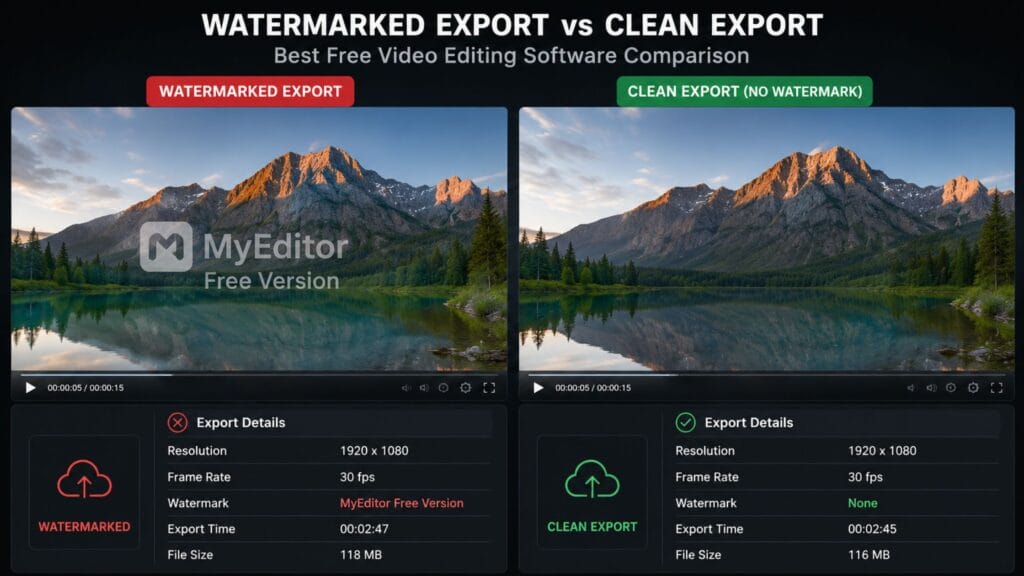
A tool that says it is watermark‑free still may have limits. CapCut and Clipchamp can export videos without a logo on edits but each limits free videos to 1080p resolution. That limit matters when you need a video that looks sharp on a screen or a client wants 4K. DaVinci Resolve, Shotcut, Kdenlive and OpenShot let you export full 4K videos without any limit, which is the true meaning of free for people who need that resolution.
It is also wise to check if a particular premium template, transition or AI feature adds a watermark, inside a tool that’s otherwise watermark‑free. Many editors, including CapCut keep some assets behind a paid tier. Add a badge if you use them without a subscription. Reading the print on a feature before you build a whole project with it can save you an unpleasant surprise when you export.
AI Features Worth Actually Using
AI features have become a standard checkbox across nearly every free video editing software in this category but not all of them save real time. Automatic captions and subtitle generation are the most consistently useful AI feature across CapCut, DaVinci Resolve and most competitors, since manually timing captions to speech is genuinely tedious work an algorithm handles well.
Background removal and basic object tracking are the next tier of genuinely useful AI tools, both of which used to require far more manual masking work than most casual editors were willing to do. Auto-reframing, which repositions a horizontal video for a vertical format, is convenient for quickly repurposing content across platforms, though it is worth a manual review afterward since automatic reframing occasionally crops out something that matters.
Treat most other AI-branded features, automatic music selection, one-click style filters or AI-generated b-roll, as convenient shortcuts rather than reasons to choose one editor over another, since the core editing experience and export quality matter far more to the finished video than any single AI add-on.
How to Pick the Right Editor for Your Project
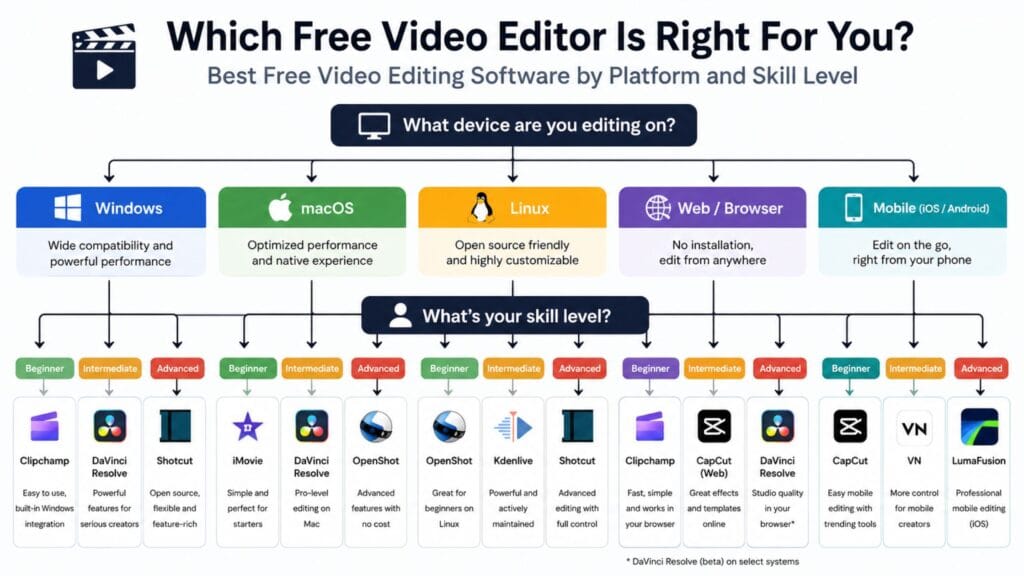
Choose DaVinci Resolve if you are willing to invest real time learning a tool and want the strongest color grading and effects available at any price, free or paid. Choose CapCut if you need a finished short-form video today and 1080p is genuinely enough for where it is being published.
Choose iMovie if you are on a Mac and want something simple with no learning curve or Clipchamp if you are on Windows and want the same convenience already built into your operating system. Choose Shotcut, Kdenlive or OpenShot specifically if you want full 4K export with zero limitations and do not mind a slightly less polished interface than the mainstream commercial options.
Once your video is edited, pairing it with the right thumbnail or cover graphic matters just as much as the edit itself and our best free design tools for non-designers guide covers exactly that. If you also need a caption to go with the finished video, our best AI caption generators guide picks up right where this one leaves off.
For styling any on-screen text you add during editing, it is worth exploring the wider collection of free text and font generator tools available on the same site.
FAQs
What is the best free video editing software overall?
DaVinci Resolve is the most consistently recommended overall pick, since its free tier includes a full professional editing suite, color grading, audio tools and visual effects, with no watermark and full 4K export. It has a real learning curve, so CapCut or iMovie tend to be recommended instead for anyone who needs a simple result today.
What is the best free video editing software with no watermark?
DaVinci Resolve, Shotcut, Kdenlive, OpenShot and iMovie all export without a watermark on their free tiers. CapCut and Clipchamp are also watermark-free on standard edits, though both cap free exports at 1080p rather than full 4K.
What is the best free video editing software for beginners?
CapCut and OpenShot are the most commonly recommended options for complete beginners, since both use a simple drag-and-drop interface that most people can navigate within minutes. iMovie is an equally strong beginner pick specifically for Mac and iPhone users.
What is the best free video editing software for Windows?
Clipchamp is already built into Windows 11 so you do not need to download a program. That makes Clipchamp the convenient starting point but the free version of Clipchamp only allows exports up, to 1080p. For Windows users who want to export in 4K with no limit, Shotcut and Kdenlive are the stronger picks. Shotcut and Kdenlive let you export in 4K with no cap at all.
What is the best free video editing software for Mac?
I find that iMovie is preinstalled on every Mac. IMovie covers everyday editing needs. IMovie does not add a watermark. IMovie can export, up to 4K on hardware. I also find that DaVinci Resolve runs natively on Mac. DaVinci Resolve is worth learning if you need advanced color grading or effects.
Does free video editing software actually have no limits at all?
Not always. Watermark-free and limit-free are two different claims and several popular tools, CapCut and Clipchamp included, cap free exports at 1080p even without a watermark. DaVinci Resolve, Shotcut, Kdenlive and OpenShot are the options on this list with genuinely no resolution cap on their free tier.
Conclusion
The free video editing software in 2026 is not about which program has the most tools. It is about finding the fit for what you are actually creating. DaVinci Resolve is still the choice overall for anyone ready to take the time to learn it. CapCut is very hard to beat when you need a social media clip and 1080p is good enough. Shotcut, Kdenlive and OpenShot are the options for people who want completely open source software with no limits. These programs are perfect, for anyone who wants 4K video without any restrictions.
If this comparison helped you avoid a surprise watermark or export cap, share it with someone still exporting their videos with someone else’s logo stamped across the corner or drop a comment with the editor that ended up sticking in your workflow.