
How a Bank Statement Converter Helps Solo Creators Turn Multi-Platform Payouts Into One Cash Flow Sheet
A solo creator who sells templates, posts short-form videos, and takes the occasional brand deal rarely has a single paycheck. Money trickles in on different days from YouTube AdSense, Gumroad, Patreon, Ko-fi, and direct wire transfers, while editing apps, cloud storage, and camera gear bill across two credit cards and a checking account. A Bank Statement Converter pulls those scattered monthly PDF statements into one structured spreadsheet, giving creators an honest view of what actually stayed in the bank after every fee and subscription cleared.
Platform dashboards feel encouraging because they display gross earnings in clean, colorful charts. Yet dashboards only show one slice of the business, and the number on a creator portal almost never equals the cash that lands in checking. A $1,200 month across four platforms can quietly shrink once foreign-exchange spreads, payout thresholds, and twelve recurring software tools come out of the mix.
Building a single cash flow workbook from real bank statements takes less than an hour once you have a repeatable workflow. Here is why creator finances get tangled so quickly and how to organize twelve months of payouts and production expenses into one sheet you can actually use.
Four Reasons Creator Dashboards Rarely Match Your Bank Balance
Even diligent creators who check their analytics every morning end up surprised when they open their banking app at the end of the quarter. Four everyday mechanics create that gap between reported earnings and real cash:
- Payout thresholds and staggered clearing dates. AdSense holds balances until you cross the $100 minimum, while affiliate networks and brand sponsors often pay on Net-30 or Net-60 terms. Work you published in September may not hit your checking account until November.
- Platform fees and currency conversion. Digital product platforms deduct processing fees before sending a payout. If a UK or EU sponsor pays in pounds or euros, the amount arriving in a US bank account reflects the bank’s exchange rate and incoming wire fee, not the headline rate on the contract.
- Production costs spread across personal cards. One video editor subscription renews on a personal debit card, a stock music library charges PayPal, and a new microphone goes on a cashback credit card. None of those costs appear on your creator dashboards.
- Internal transfers disguising true cash flow. Moving $800 from checking into a tax savings account or paying off a credit card balance shows up as an outflow on the checking PDF, which inflates spending totals if you do not filter it out.
Because bank statements record money only when it physically arrives or leaves, they act as the single source of truth for your creative business.
Step 1: Download Statements Across Every Payout and Spending Account
Choose a clear window, such as the last six months or the full past year. Log into every account that either receives creator payouts or pays for creative tools. For most solo creators, that means one primary checking account, one or two credit cards, and any secondary payout account such as PayPal or Wise.
Download the monthly PDF statements and drop them into folders named by bank. If you also have paper statements from a local credit union or scanned receipts saved as images, keep them in the same project folder. Checking the folder list before you convert immediately reveals if a single month is missing.
Step 2: Turn Every Statement Into One Clean Table
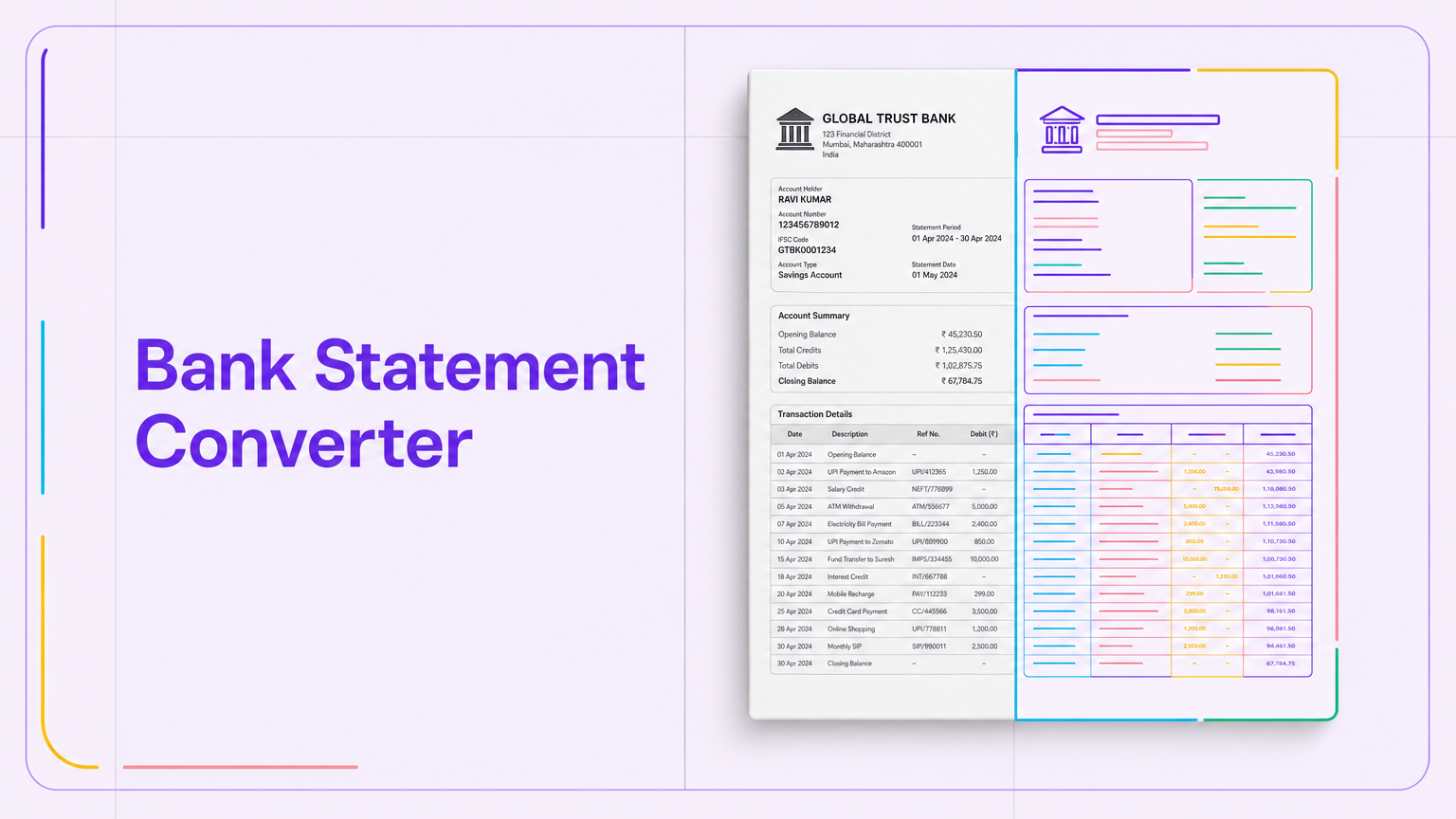
Open Bank File Tool, a Bank Statement Converter that reads PDF bank statements and exports structured Excel, CSV, or JSON files. It accepts digital PDFs downloaded from online banking, scanned paper statements, and PNG or JPG photos up to 25 MB, including files where digital pages and scanned pages are mixed together.
You do not need to build custom column rules when switching between a checking statement from Chase, a credit card PDF from Capital One, and a monthly summary from PayPal. The tool recognizes each institution’s header labels and layout automatically, extracting every line into date, description, deposit, withdrawal, and running balance.
After parsing the file, the converter sums all extracted transactions and checks them against the opening and closing balances printed on the original PDF. When the arithmetic lines up, the file shows “Matches the statement,” confirming that every transaction row was captured cleanly. Export each converted statement to Excel, paste them into a single master tab, and add a column on the left called Account so you always know which card or bank generated each row.
Step 3: Filter Out Transfers and Non-Creator Personal Spending
Before calculating what your creative work earns, clear away the noise. Add a column called Category and turn on spreadsheet filters for the description column.
Start by finding transfers between your own accounts. Search for phrases like *Online Transfer*, *Payment Thank You*, *Autopay*, and your own name. Paying a $600 credit card bill from checking is not a new expense, because the individual purchases already sit on the credit card statement you imported. Mark all of those rows as *Internal Transfer* so you can exclude them from every sum.
Next, sort the description column alphabetically. Groceries, rent, dining, and personal shopping will group into neat blocks. Label those rows *Personal* in bulk so only creator income and creator expenses remain active when you filter the sheet.
Step 4: Group Your Creator Income and Production Costs
Now assign clean, practical tags to the remaining rows so you can see how each revenue stream compares against what it costs to run the channel. Four core buckets work well for almost every digital creator:
- Platform Ad and Membership Payouts. Tag incoming deposits from *GOOGLE ADSENSE*, *PATREON*, *TIKTOK*, *SUBSTACK*, or *TWITCH* under Platform Revenue.
- Digital Products and Direct Sales. Tag payouts from *GUMROAD*, *LEMON SQUEEZY*, *STRIPE*, or *ETSY* under Product Revenue.
- Brand Deals and Freelance Clients. Tag direct ACH deposits and wire transfers from sponsors or agencies under Sponsorships.
- Software, Gear, and Outsourcing. Split outgoing creator costs into Software & AI Tools (design apps, video editors, web hosting, domain renewals), Equipment & Props (lighting, microphones, hard drives), and Contractors (thumbnail designers, freelance editors).
Sorting alphabetically makes tagging fast. Twelve monthly charges from Adobe, Notion, or a stock footage library appear right next to each other, letting you label a full year of a single tool in five seconds.
Step 5: Build a Monthly Cash Flow View That Guides Real Decisions
Add a second tab to your workbook with months running down the left column (January through December) and your tagged categories running across the top. Use SUMIFS formulas to pull totals by month and category from the master sheet.
Add two summary columns on the far right: Net Creator Cash (Total Creator Income minus Total Creator Costs) and Software Ratio (Software & AI Tools divided by Total Creator Income).
Looking at twelve months laid out in a single grid reveals patterns that daily dashboards hide:
- Your true baseline month. Stripping out one-off brand deals shows whether ad revenue and digital products alone cover your monthly tool stack.
- Seasonal dips. Many creator niches spike in November and December, then drop sharply in January and February. Seeing exact dollar swings tells you how much cash buffer to set aside during Q4.
- Tool creep. A creator paying for two video editors, three cloud storage plans, and four AI subscriptions can spot overlapping tools immediately when the annual software row sits right beside net profit.
Keep the Workbook Alive in Ten Minutes a Month
You do not need complex accounting software to keep this system running. On the first Monday of each month, download the previous month’s PDF statements, convert them into Excel, paste the new rows onto the bottom of your master tab, and tag the few dozen creator lines while the sponsorships and software charges are still fresh.
The spreadsheet updates your monthly cash flow tab automatically. When a brand asks for your rates, or when you are deciding whether to hire a part-time editor, you will make the call using real bank numbers instead of hopeful guesses from a dashboard.