Give your existing images a second job with AI editing
A photograph can work well on one page and feel awkward everywhere else. The subject sits too close to the edge for a banner, or a busy background competes with newsletter text. An illustration that looks balanced on a website becomes cramped in a square social post.
Before commissioning another image, consider whether a specific edit would make the existing one usable. For bloggers, online sellers and small creative teams, this can help stretch a modest collection of photographs across several projects.
It helps to decide what the new version needs to do before making any changes.
Start with the layout
Open the destination first. Check the space the image needs to fill, where the headline will sit and how much of the picture remains visible on a phone.
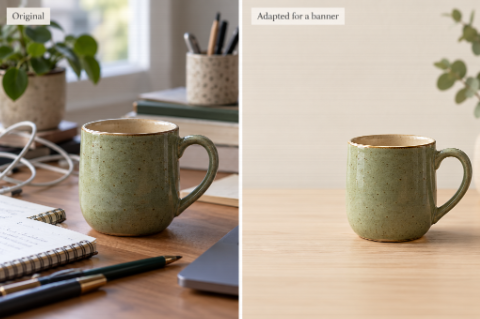
Suppose you have a photograph of a ceramic mug for an article about home workspaces. The mug suits the story, but the desk around it is cluttered. Asking an editor to “make this more professional” leaves the result open to interpretation. A more useful instruction would be:
“Place the mug on a pale wooden desk against a simple cream wall. Keep its shape, handle and glaze color unchanged. Leave clear space on the left for a headline.”
This gives the edit a purpose and names the details that should stay intact. Check those details in the result, particularly if the photograph shows a product readers can buy.
Pixlio’s browser-based AI image editor lets you upload an existing image and describe the change you want. The same workspace includes text-to-image generation, which is useful when a project also needs a new illustration or background concept.
Illustrative comparison: a simpler background and more space around the mug make the image easier to use in a banner.
Check the first result before refining it
An attractive result can make small mistakes easy to miss. Compare the edited image with the source at a similar size. For the mug, inspect the handle opening and rim. In a portrait, check the eyes and expression. Read any lettering that needs to remain accurate.
Then try the image in its intended layout. Space that looks generous in the preview may disappear when a website crops the picture. You may discover that the background needs less attention than the position of the subject.
Keep the next instruction focused on the problem you can see. If the mug looks right but the scene feels crowded, ask for more space around it. Changing the lighting, background and composition together makes it harder to identify why a later version looks worse.
On Pixlio’s dedicated AI image editor page, the Edit action uses the current result as the reference for another revision. Signed-in users can also choose images from My Creations, making it easier to return to a visual after reviewing a draft or receiving feedback.
Choose a tool that fits the next task
A general editing prompt is useful for changes that need explanation. For a straightforward task, a dedicated tool can offer a clearer starting point.
Pixlio is also an AI image creative studio with tools built around particular uses, including Background Remover, AI Outpainting and Caricature Maker. A product collage may need a cutout; a tightly framed photograph may need more room for a banner. A personal portrait intended for a lighthearted author bio could suit a caricature treatment. The choice depends on where the image will appear.
The editor’s result actions carry a selected image into tools for background removal, upscaling or canvas extension. You review the settings and start processing on the destination page. This supports a creative workflow in which an image is refined and prepared for its final use.
Save a version you can find again
Keep the original alongside the finished image and give the export a recognizable name. “Desk-mug-newsletter-wide” tells you more than another file called “final.”
Save the successful prompt too. It gives you a starting point for related images, although each source may need different instructions.
Before publishing, check the exported file in the actual page. Look for an awkward crop or a subject that becomes too small on mobile. If another person will reuse it, leave a brief note about its intended placement so they can choose the right version without reopening every file.