Faster Video Editing: Practical Workflow Tips and Tools That Save Time
Most editing delays are not creative. They come from hunting soft clips, re-exporting entire timelines for a twelve-second hero shot, and waiting on desktop remasters when the only problem was resolution or clarity. A tighter workflow treats quality repair as a short, deliberate pass—then returns you to cuts, sound, and delivery.
Start With Decisions That Shrink the Timeline
Cut the publishable range before you “fix” anything. Mark the seconds that will actually ship—hook, testimonial, product beat—and ignore the rest until the client asks for more. Enhancing a full dump burns credits, disk, and attention.
Separate look from layout. If the player size is already fixed, improve appearance at the current dimensions. If you still need pixels to crop or to sit beside sharper B-roll, enlarge with a clear target size in mind. Mixing those goals in one vague “make it better” pass is how revisions multiply.
Keep a source master and a working derivative. Any AI video upscaler should write a new file. Compare in sync, then edit from the derivative. If AI detail looks wrong on faces or text, you still have the master without undoing a nested remaster.
Batch by destination, not by folder name. Group clips that share the same output canvas (vertical Shorts, 16:9 webinar page, square ads). One scale decision covers the batch and reduces second-guessing mid-export.
What Is VideoUpscaler?
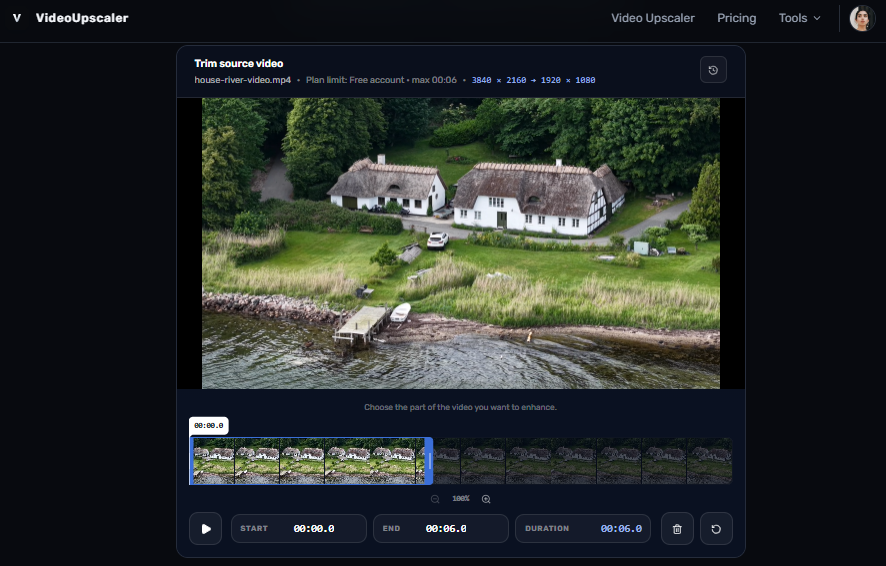
VideoUpscaler is an online AI video upscaler and enhancer aimed at editors who need a faster quality pass without installing a heavy desktop suite. In the browser you upload a clip, trim the section that matters, choose 1x enhancement at the original size or 2x / 4x enlargement, review output dimensions and credit estimate, then run cloud processing and download an MP4. Frame handling is oriented toward keeping detail and motion more consistent across consecutive frames than a naive stretch. It is not a full NLE, and 4x does not equal guaranteed 4K—the workspace applies Full HD-class ceilings—so it fits best as a focused repair step inside a larger edit, not as a replacement for color, titles, and audio finishing.
Key Feature Overview
- – 1x enhance-in-place or 2x / 4x enlargement with size previews
- – Trim-before-process to limit time and credits to the usable range
- – Credit estimate before you commit
- – Cloud enhancement with MP4 download; local original unchanged
- – Common containers such as MP4, MOV, WebM, and MKV when the browser can decode them
How VideoUpscaler Fits an Efficient Edit Day
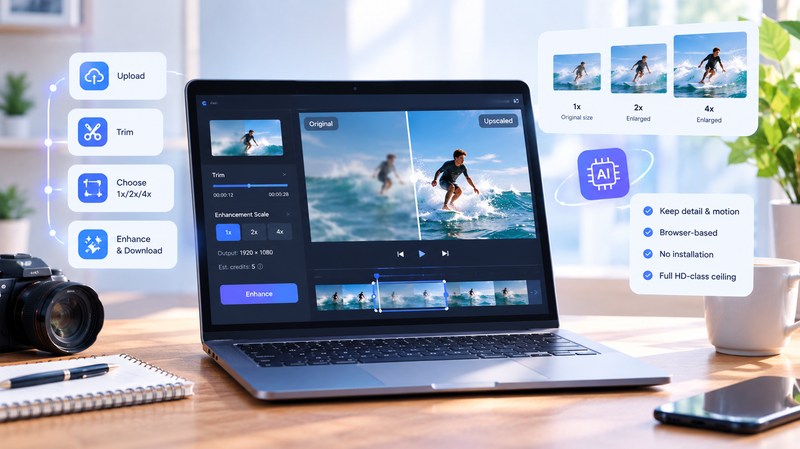
How VideoUpscaler Fits an Efficient Edit Day
Step 1. Upload the clip.
Add the source video to VideoUpscaler and wait for the preview to load. If the video fails to play, re-encode it as an H.264 MP4 and upload it again.
Step 2. Trim the footage.
Select the specific segment you need by setting the start and end points. Check the duration limit displayed beside the controls to ensure your selection fits before proceeding.
Step 3. Choose the enhancement scale.
Select 1x to improve visual clarity without changing the original dimensions, 2x to enlarge the footage moderately, or 4x when a more substantial increase in resolution is needed. Review the projected output dimensions and credit usage before choosing a scale.
Step 4. Enhance and review the result.
Start the enhancement process and wait for the job to finish. Preview the processed clip to check whether the details and overall image quality meet your needs before downloading.
Step 5. Download and return to editing.
Download the enhanced MP4 and import it into your video editor’s timeline. Keep only one enhancement job queued at a time, and download completed results promptly while they remain available in the cloud.
Used this way, VideoUpscaler fits between “selects locked” and “picture lock,” letting you improve a specific clip before final assembly without switching to a more involved remastering workflow for a single social cutdown.
Other Tools Editors Often Compare
Topaz Video AI is a well-known desktop enhancer for teams that already live inside a powerful workstation and want model-level control over longer or more demanding footage. It rewards machine resources and learning curve; for a single trimmed hook that only needs a browser pass, it can be more product than the job requires.
HitPaw is another consumer-friendly video upscaling tool people reach for when they want guided enhancement outside a full creative suite. It can cover similar “soft clip” pain, though the install-and-license path differs from a credit-based online workspace—worth weighing if your editors hop between machines or prefer zero local installs.
Neither replaces an NLE. Both are reasonable references when you are shopping the category; VideoUpscaler stays the practical default in this workflow because trim, scale preview, and MP4 download live in one browser session aimed at short, accountable jobs.
Three Efficiency-First Scenarios
Client review cut by end of day
You owe a two-minute review link. Three B-roll inserts look soft next to interview A-cam. Trim each insert to the exact usable beat, run 1x or 2x per canvas need, download, and replace on the timeline. You protect the deadline without remastering whole camera cards.
Same-afternoon vertical cutdown
A landscape webinar must become three Shorts. After the picture is selected, upscale only the ranges you will crop so the vertical reframes have enough pixels. Edit text and captions in your usual app; keep enhancement off the critical path of scripting.
Pitch deck clip from older archives
A founder wants ten seconds of early product footage in a deck. Transfer quality is modest. Trim aggressively, choose scale against the slide’s player size, download once, and compress if the CMS complains. One deliberate pass beats overnight “restore everything.”
What You Gain When Quality Work Stops Blocking the Cut
Fewer full-timeline re-exports
By fixing only the seconds that publish, you avoid waiting on whole-sequence renders every time a soft shot slips into the select reel.
Clearer spend and size expectations
Credit estimates and on-screen dimensions turn “try 4x on everything” into a conscious choice, which matters when freelancers share a pool or a producer asks why a job cost what it did.
Less tool thrash between machines
A browser workspace means a producer can prepare an excerpt while the editor stays in the NLE—handing off an MP4 instead of a project preset and a GPU overnight queue.
Honest limits that reduce revision loops
Knowing the output ceiling and that severe blur will remain visible sets client expectations early, so you argue less about “why isn’t this Ultra HD” after delivery.
Next Steps
Lock selects first, decide whether you need enhance-in-place or true enlargement, then run a short cloud pass on the ranges that will ship. Keep VideoUpscaler as the focused online step for those excerpts, remember desktop alternatives exist for heavier remasters, and return the rest of your day to editing—not waiting on pixels that were never going to publish.