YouTube Thumbnail Maker: Best Free Tools in 2026
A great video with a forgettable thumbnail loses to a mediocre video with a thumbnail that earns the click, which is exactly why thumbnail design gets disproportionate attention from serious creators. The good news is that a genuinely capable YouTube thumbnail maker no longer requires Photoshop or a design background and one of the strongest options is sitting inside YouTube Studio itself, unused by most creators who never open that tab. This guide compares the best thumbnail makers for 2026, including the built-in tool almost every competitor list skips entirely.
Why Thumbnails Still Decide Whether a Video Gets Clicked
A thumbnail is the only part of a video most people ever see before deciding whether to watch, which means it carries more weight per pixel than almost anything else a creator produces. YouTube’s own recommendation systems favor videos that earn clicks and hold attention and a thumbnail that fails to stand out in a crowded feed never gets the chance to prove the video itself is good.
This is exactly why a dedicated thumbnail maker earns its place in a creator’s toolkit even when general design software already exists. Purpose-built tools default to the right canvas size, keep templates organized around what actually works for a video preview and remove the setup friction that keeps a five-minute task from turning into thirty.
How We Picked These Tools
This list favors tools with a genuinely usable free tier, since most creators want to test a thumbnail workflow before committing to a subscription. Each entry was judged on template quality specifically for the 16:9 video-preview format, how well AI features handle the two hardest parts of thumbnail work, background removal and layout suggestions and whether the free export is actually watermark-free rather than watermark-free in name only.
Quick Comparison Table
| Tool | Best For | Free Tier | Watermark on Free Export |
| Canva | Largest template library, general use | Generous, unlimited designs | None |
| Adobe Express | AI background removal via Firefly | Generous, unlimited designs | None |
| YouTube Studio (Ask Studio) | Built-in, video-aware AI suggestions | Included with every account | None |
| Snappa | Fast manual edits, preset sizes | Limited monthly downloads | None on free downloads |
| Fotor | Quick AI enhancement and cutout | Limited resolution on free tier | None but capped resolution |
Canva: Best Overall, Largest Free Template Library
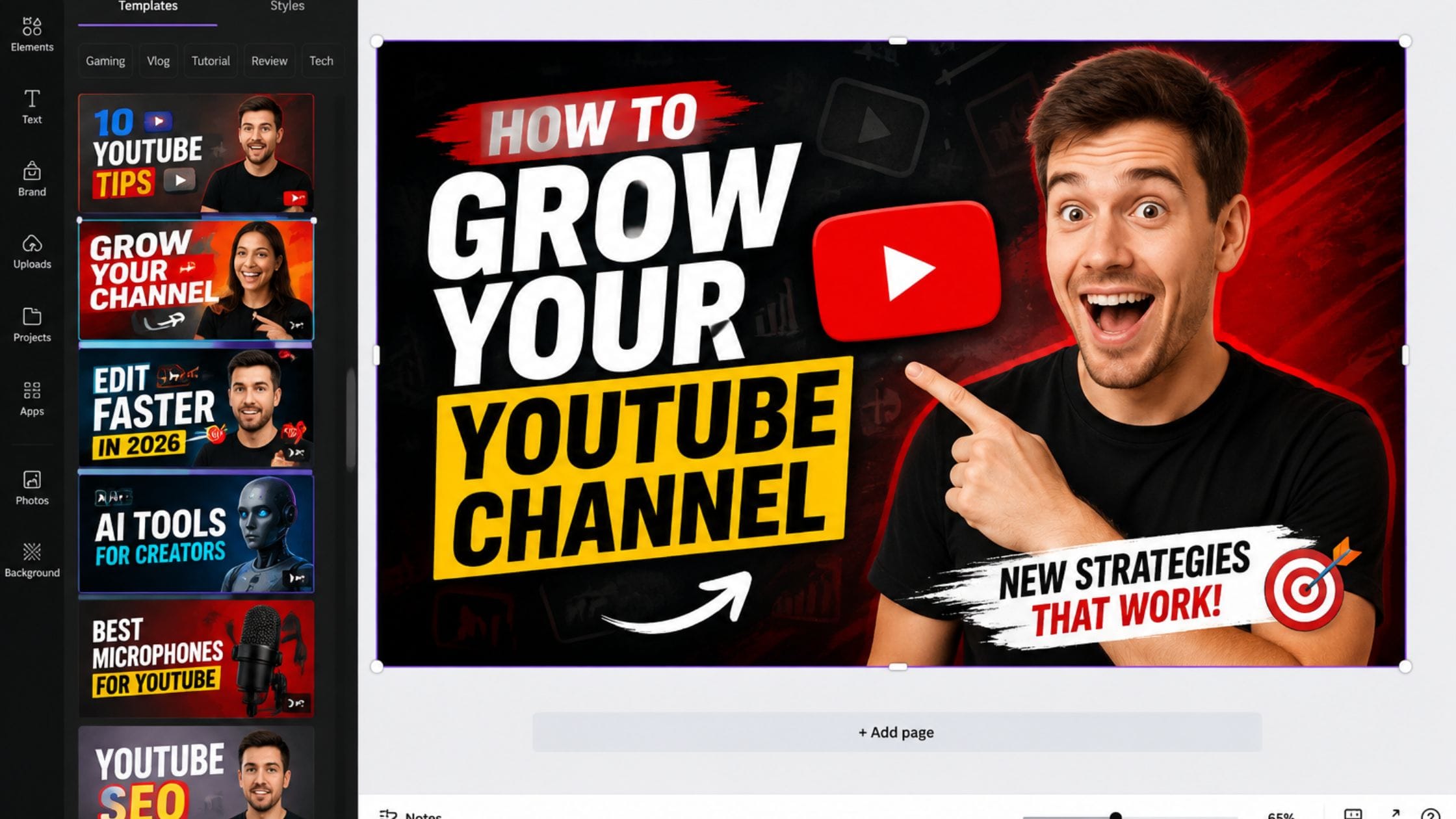
The Canva YouTube thumbnail maker remains the default recommendation across nearly every comparison in this category and for good reason. As a free YouTube thumbnail maker, its free tier includes thousands of YouTube-specific thumbnail templates alongside a genuinely unlimited number of designs, with no watermark on standard exports. Its Magic Design feature can generate a complete layout suggestion from a short text prompt, which helps on days when a blank canvas is the real obstacle rather than the editing itself.
The tradeoff shows up once you want to go beyond templates. Premium elements, certain fonts and the more advanced brand kit tools sit behind Canva Pro and background removal specifically requires either a paid plan or careful use of a limited free allowance. For a creator’s first thumbnail tool, though, Canva covers more ground for free than almost anything else on this list.
Adobe Express: Best AI Background Removal
Adobe Express brings Adobe’s design pedigree into a browser-based tool built for speed rather than Photoshop’s full complexity. Its background removal, powered by Adobe’s Firefly AI, handles the single most common thumbnail edit, cutting a face or object out of its original background to float over something bolder, cleanly and without a paid plan required.
The free tier includes unlimited designs and a reasonable slice of Adobe Stock, which matters if a project needs a background image rather than just a template. Where Canva wins on template volume, Adobe Express tends to win on output quality for anyone already comfortable with a slightly steeper interface.
The Built-In Tool Most Creators Never Try
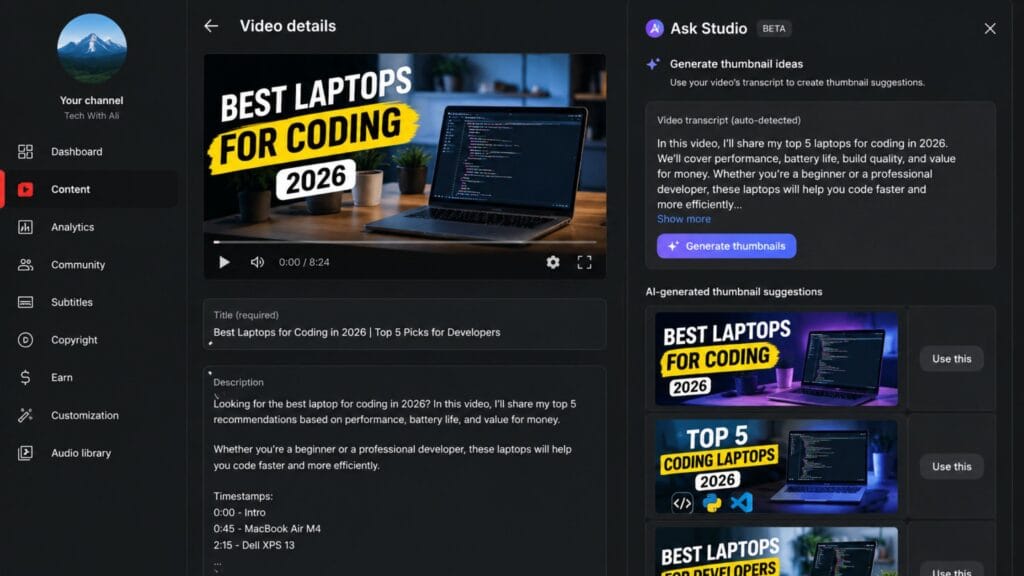
Every comparison reviewed for this guide sends creators straight to a third-party app and none of them mention that YouTube’s own Help Center documents a built-in AI thumbnail tool called Ask Studio, available directly inside the publishing workflow in YouTube Studio. Typing a request like create a thumbnail for this video lets Ask Studio analyze the video’s actual transcript and themes, then generate suggestions you can refine with follow-up prompts, all without leaving the upload screen or installing anything.
This will not replace a dedicated design tool for a channel that wants full manual control over layout and typography but it is a genuinely capable option for a quick, on-brand thumbnail that already understands what the video is actually about, since it is reading the transcript directly rather than working from a text prompt alone. This AI YouTube thumbnail maker ships free with every account, so it is worth testing before assuming a separate AI thumbnail maker for YouTube is required.
Snappa and Fotor: Best for Fast, Simple Edits
Snappa strips away the extras and focuses on speed, with preset social media dimensions already loaded and a straightforward drag-and-drop editor that gets a simple thumbnail finished in a couple of minutes. Its free tier caps monthly downloads rather than gating features, which works well for a creator publishing occasionally but becomes limiting fast for a daily upload schedule.
Fotor leans more toward photo editing than template design, with AI enhancement and background cutout tools that work well when you already have a strong base image and just need to polish it. Its free tier restricts export resolution, so a thumbnail that looks sharp in the editor can come out softer than expected once downloaded, worth checking against YouTube’s actual size requirements before publishing.
The Feature Almost Every Free Tier Locks Away
Background removal is the single most-used editing step in thumbnail work, cutting a face or subject out of its original photo to place over a bolder background and it is also the feature free tiers restrict most consistently across this entire category. Canva and Snappa both limit or paywall it, while Adobe Express and Fotor include some version of it free with real, if variable, quality.
The practical takeaway is to test this specific feature with your own photo before committing to a tool, rather than assuming every free tier handles it the same way. A tool that looks identical to a competitor in template count can behave completely differently the moment you actually try to cut a subject out of a background.
Getting the Size Right
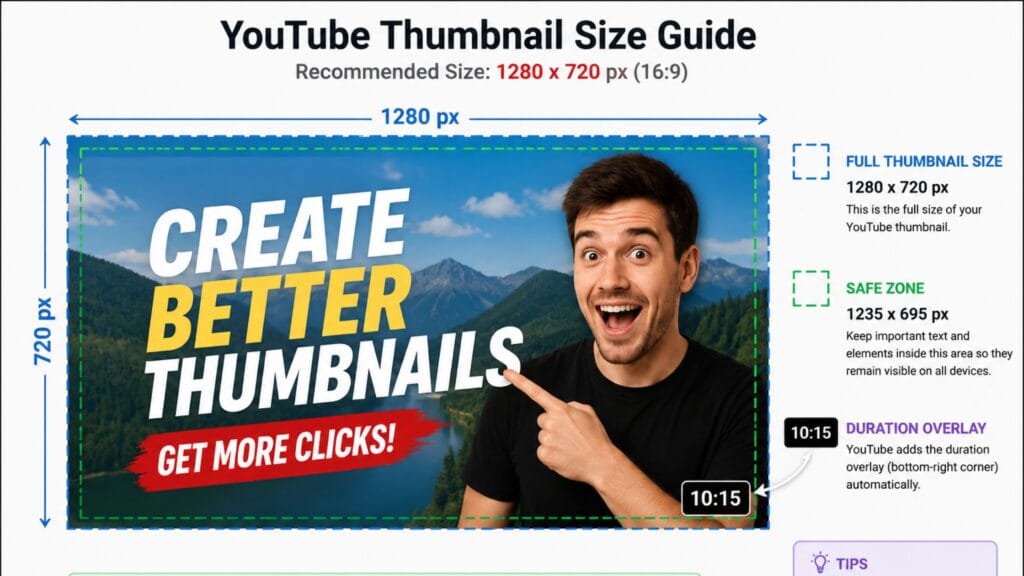
YouTube’s official specification for custom thumbnails is 1280 by 720 pixels at a 16:9 ratio, under 2MB, in JPG, GIF, BMP or PNG format and every tool on this list supports exporting at that size directly. What most comparison pages skip is a more specific technical detail: YouTube’s own thumbnail testing documentation states that any thumbnail uploaded below 720p gets automatically downscaled to 480p for A/B experiments, which quietly punishes a low-resolution thumbnail even if it looked fine in your editor.
Designing at the full 1280×720 size or larger, rather than upscaling a smaller image after the fact, avoids that penalty entirely and keeps text and faces sharp across every surface where YouTube displays a thumbnail, from a tiny mobile sidebar suggestion to a full-size homepage card.
What Actually Makes a Thumbnail Get Clicked
No thumbnail maker, however capable, fixes a weak design decision underneath it and the strongest-performing thumbnails across most niches share a small set of traits regardless of which tool built them. A single dominant subject, usually a face with a clear expression, reads faster than a busy composition with several competing elements fighting for attention in the same small frame.
High contrast between the subject and background matters more than color choice specifically, since a thumbnail has to register correctly at roughly 120 pixels wide in a mobile sidebar, far smaller than it looks while you are designing it. Limiting on-screen text to three to five bold words, rather than a full sentence, respects that same constraint and previewing your draft at actual mobile size before publishing catches problems a full-screen editor view will always hide.
A thumbnail maker’s real job is removing the technical friction, correct sizing, clean cutouts, readable type, so you can spend your attention on these actual design decisions instead of fighting the software to get there.
How to Pick the Right Tool for Your Channel
Start with Canva if you want the widest template selection and are not planning to remove backgrounds constantly, since its free tier covers nearly everything else without restriction. Choose Adobe Express instead when background removal is a regular part of your workflow and you want that specific feature to work well for free.
Try YouTube Studio’s own Ask Studio before assuming you need another app at all, especially if your channel publishes often enough that speed matters more than deep manual control. Reach for Snappa or Fotor specifically when you already have strong source images and just need a fast, simple editor rather than a full template library.
A thumbnail is only one piece of a finished upload. Our guides to AI voice generators and AI caption generators cover the narration and copy side of the same publishing workflow and the collection of free text and font generator tools on this site covers styled text for anything you build outside the thumbnail itself.
FAQs
What is the best free YouTube thumbnail maker?
Canva is the most commonly recommended free option, with thousands of YouTube-specific templates, unlimited designs and no watermark on standard exports. YouTube Studio’s own built-in Ask Studio tool is also worth trying first, since it ships free with every account and reads your video’s actual content.
Is there a free thumbnail maker for YouTube online with no download required?
Yes, every tool covered in this guide, Canva, Adobe Express, Snappa, Fotor and YouTube Studio’s own Ask Studio, runs entirely in a browser with no software to install. A free YouTube thumbnail maker online is the standard for this category now rather than the exception.
Does YouTube have a built-in thumbnail maker?
Yes, YouTube Studio includes an AI feature called Ask Studio that generates thumbnail suggestions based on your video’s transcript and themes, accessible directly in the upload workflow. Most comparison guides overlook it entirely in favor of third-party design tools.
What size should a YouTube thumbnail be?
YouTube’s official specification is 1280 by 720 pixels at a 16:9 aspect ratio, under 2MB, in JPG, GIF, BMP or PNG format. Thumbnails uploaded below 720p get automatically downscaled during YouTube’s A/B testing experiments, so designing at full size avoids that penalty.
Which thumbnail maker has the best free background removal?
Adobe Express includes AI-powered background removal through Firefly on its free tier with genuinely usable quality. Canva and Snappa both restrict or paywall this specific feature, so it is worth testing with your own photo before choosing a tool based on this need.
Do free thumbnail makers add a watermark?
It varies by tool. Canva, Adobe Express, Snappa and YouTube Studio’s own Ask Studio do not add watermarks to standard free exports, though some tools in this category restrict export resolution instead of adding a visible mark.
Can I make YouTube thumbnails without any design experience?
Yes, every tool in this comparison uses a template-based or prompt-based workflow specifically built for people without design training. Starting from a template and swapping text, colors and images is the standard approach rather than building a layout from a blank canvas.
Conclusion
Template libraries and AI background removal get most of the attention in this category but the tool sitting unused inside YouTube Studio deserves a real test before you install anything else. Canva remains the strongest general pick, Adobe Express wins specifically on background removal and Ask Studio is worth trying first simply because it already knows what your video is about.
Whichever tool you land on, design at the full 1280×720 size rather than upscaling something smaller later, since that one habit avoids the automatic downscaling penalty most creators never realize exists.