Does Your PDF Look Unprofessional? 8 Mistakes to Fix Today
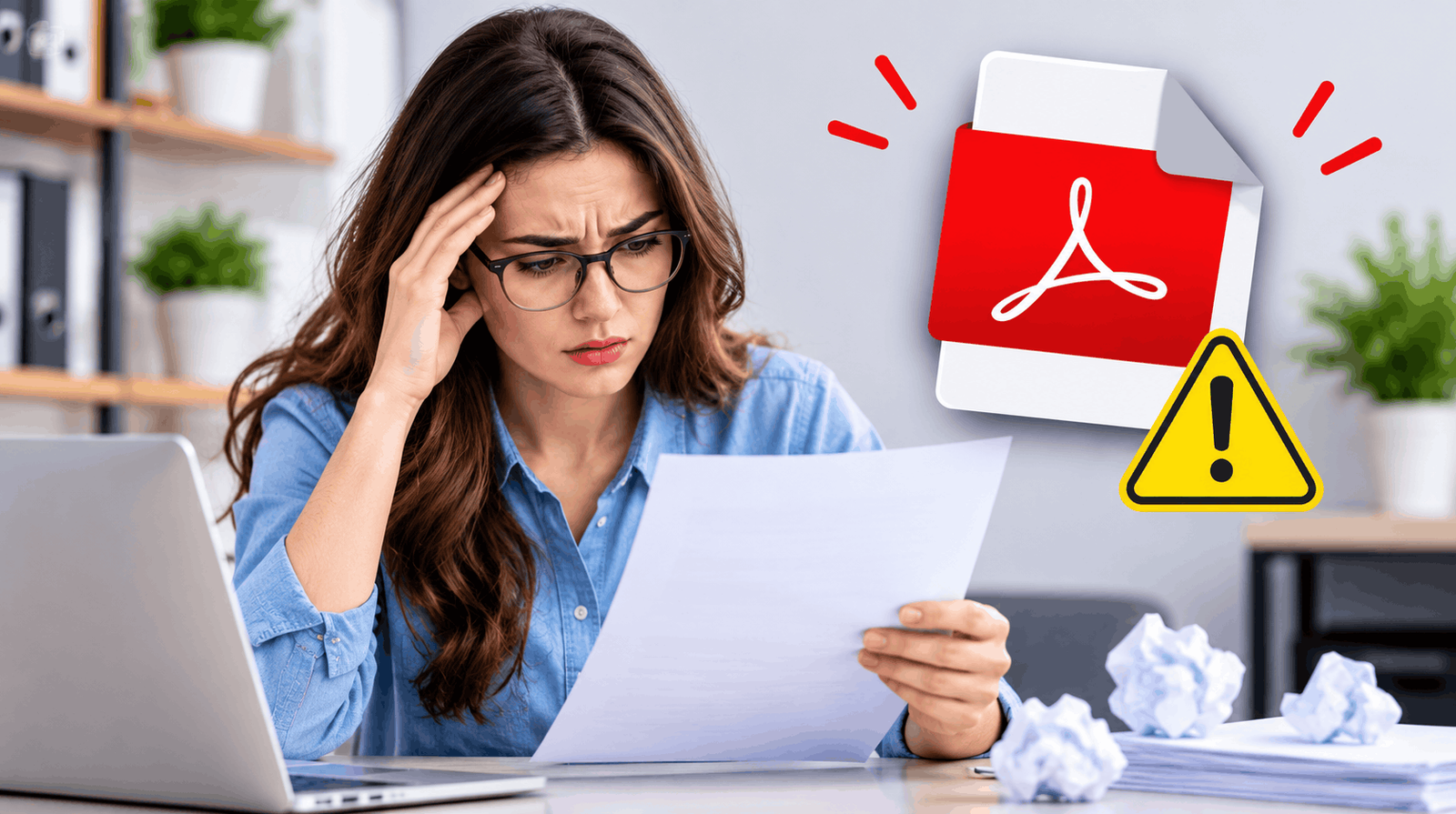
Business proposals, presentations, reports, resumes, contracts, and marketing materials are often encrypted as PDF documents. This format is highly versatile and capable of ensuring consistent layout across devices. These attributes make it a go-to choice for professional communication. However, mere conversion of a document to PDF doesn’t guarantee a polished and professional appearance.
You must pay attention to the elements featured in a PDF because small yet noticeable mistakes can seriously impact readability, credibility, and overall presentation quality. Such errors may appear minor to you, but they often leave a negative impression on clients, employers, colleagues, and customers. Fortunately, you can quickly fix these mistakes without much hassle. This article explores a few common, unnoticed mistakes in PDFs that undermine professionalism.
It also helps you discover the easiest method to fix such mistakes.
Read on to learn more.
Common Mistakes Reflecting Unprofessionalism
Here are some common mistakes that will make your PDF look unprofessional if left unfixed:
Inconsistent Fonts and Text Formatting
Any PDF with inconsistent typography appears unprofessional to many people. A document featuring various font styles, varying font sizes, mismatched colors, or irregular spacing between sections leaves a negative impression.
Such inconsistencies make the document look disorganized and often difficult to read. A document with such mistakes usually distracts readers from the actual content and reduces credibility. Ensuring a clean and professional reading experience requires you to maintain consistency in font style, size hierarchy, and formatting structure.
Poor Document Layout and Alignment
A well-structured layout with properly aligned content contributes to the professional appearance of a PDF. Many PDFs lose their appeal due to uneven margins, misaligned content, awkward spacing, and poorly placed visual elements.
Content scattered across the page leads to a frustrating experience for readers. They often struggle to consume and follow the information. This phenomenon minimizes the effectiveness of reports, proposals, and presentations. Hence, a balanced layout is essential to ensure visual harmony, enhance readability, and optimize user experience.
Outdated or Incorrect Information
Any PDF document featuring incorrect statistics, outdated company details, inaccurate pricing information, and irrelevant facts quickly undermines your professionalism. PDFs are usually distributed to multiple recipients. Even a small oversight is enough to affect trust and credibility.
Essential information should be updated before sharing a PDF to uphold accuracy and relevance. Ensuring the most current and correct information is a must if you want your documents to appear professional to the target audience.
Grammatical and Spelling Errors
Even if you have formulated a visually appealing PDF, grammatical mistakes and spelling errors can severely harm its professional appearance. Typos that are often left unchecked suggest a lack of attention to detail and make readers raise concerns about the credibility of the content.
Regardless of the type of document, impeccable grammar and spelling are a must. Failure to do so reflects unprofessionalism and incompetence.
Low-Quality Images and Graphics
The visual appeal of many PDFs heavily relies on images. Blurry photos, pixelated graphics, stretched visuals, or low-resolution logos can make a document look substandard. Poor image quality leaves a negative impression of your brand, organization, or personality.
Readers often link high-quality visuals with professionalism and attention to detail. The use of clear, properly sized images with high-resolution quality often plays a key role in enhancing the overall appearance of a PDF.
Broken Links and Non-Functional Interactive Elements
Hyperlinks, clickable buttons, navigation menus, or form fields are also featured in many PDFs. User experience suffers significantly when such elements fail to work correctly. Broken links often frustrate readers who try to access additional resources, such as websites, referenced sources, or contact pages.
It becomes quite problematic in the case of digital brochures, portfolios, and interactive business documents. Ensuring smooth navigation and functionality is essential before sharing a PDF, which is only possible when you test all interactive elements yourself.
Missing or Inconsistent Branding
Client communication is often heavily reliant on PDFs. Inconsistent or missing branding elements, such as logos, colors, taglines, or visual themes, make a document look disconnected from the organization it is supposed to represent.
A unified professional identity, reinforced recognition, and stronger trust require a consistent brand. Failure of a PDF to align with visual standards across websites, presentations, and marketing materials reflects a lack of professionalism.
Even simple branding mismatches can significantly impact the quality perception of a brand or organization.
Unnecessary Pages and Cluttered Content
Many PDFs come loaded with redundant information, blank pages, outdated sections, and unnecessary visuals. Such cluttered documents overwhelm readers and make it difficult for them to identify important information.
Excessive content that is no longer needed also contributes to larger file sizes and difficulty in reading and following information. Failure to ensure concise, organized documents that are free of unnecessary pages may make it difficult for you to deliver value to the audience.
Easiest Method to Fix Mistakes
You don’t need technical expertise or costly software to fix mistakes that contribute to the unprofessionalism of PDFs. You can edit PDFs online through your browser to get rid of such pitfalls. A reliable online PDF editor with all necessary features and functionalities will help you do that. The use of such a tool makes the process of improving document quality simple and convenient.
Here are some quick fixes you can make by using an online editor:
Edit and Update Text Instantly
The online editing resource helps you modify existing text without recreating the entire document from scratch. You can fix outdated information, correct factual inaccuracies, and update contact details with the option to edit text. This function proves to be highly useful when you want to quickly revise content and ensure the accuracy and relevance of the document before distribution.
Correct Formatting Inconsistencies
The ability to make formatting changes through the online tool helps you standardize font styles, adjust text sizes, modify colors, and improve spacing throughout the document in a few minutes. This possibility helps you ensure visual consistency and transform a disorganized PDF into a polished, professional document.
Improve Layout and Alignment
The tool that allows you to make necessary changes to PDFs online also offers you the option to reposition and arrange featured elements. You can move text boxes, images, and other page elements with this functionality. It helps you ensure balanced page layouts, fix alignment issues, and improve the overall structure of the document.
Replace Low-Quality Images
You don’t need to create a PDF from scratch for integration of high-quality visuals. An online tool that comes equipped with all the necessary features will make it easy for you to remove unnecessary or low-resolution images and upload higher-quality visuals. This update will improve the presentation quality and professional appearance of your PDFs.
Add, Remove, or Rearrange Pages
The page management functionality offered by a web-based PDF editor will help you insert, delete, rotate, extract, reorder, or number pages according to your requirements. The use of this functionality ensures removal of unnecessary or redundant content, leading to a streamlined reading experience.
Repair or Add Hyperlinks
Just like the option to edit text, you can also use the online tool that allows you to edit PDFs for the addition of new hyperlinks or the repair of broken ones. The correction of broken links and proper functioning of all navigation elements helps you ensure a smoother and highly engaging experience for readers.
Insert Branding Elements
A business document without branding elements lacks visual appeal. You can use the online tool to easily upload logos, add branded graphics, place watermarks, and uphold consistent visual identity across pages and documents. This customization option helps you enhance professionalism and brand recognition in PDFs shared with clients and stakeholders.
Annotate and Review Content Efficiently
You can also use an editor to annotate and review the content featured in a PDF requiring collaborative team effort. You can easily comment, highlight, and mark elements while reviewing the document and pass the review version to team members for necessary modifications.
This possibility helps others easily identify sections requiring fixes or updates before final publication. Hence, the use of such a tool also contributes to the efficiency of a collaborative approach that helps you improve quality and ensure a polished final document.
In the End
Professional PDFs are meant to reflect credibility, attention to detail, and trustworthiness. A few common mistakes that are often left unfixed can seriously hamper the professional appearance of such documents. However, you can easily fix these problems within minutes when you know the right method to do it. You don’t even need to rely on a specific device for this purpose because this method can help you apply fixes anywhere, anytime. All you need is internet connectivity and a reliable tool that allows you to make necessary fixes within minutes. This article shares all the details you need to know about mistakes that should be fixed and the method you should use for this purpose. So, follow the takeaways and impress your target audience with professional documents!