What GPT Image 2 Changes About Making Text Graphics
For years, making a quick text graphic meant one of two things: open a template tool, type your words and pick a background, or spend time in a design app arranging type by hand. Template tools are brilliant for simple jobs. A single bold word on a flat colour, a quote card, a “SALE” banner: they handle these quickly and reliably. The trouble starts when the job gets more complicated. A headline that needs to sit inside a scene, a campaign that needs four formats, a palette that has to match a brand exactly. That’s where a general image model with strong text rendering becomes useful.
GPT Image 2, OpenAI’s latest image model, is one of the clearest examples of that shift. It’s available in the browser through the AI Image Generator on Animx, alongside Nano Banana Pro, Flux 2 Max and Seedream, without needing a separate ChatGPT or OpenAI subscription.
What Do Single-Purpose Text Generators Get Right?
It’s worth being fair to template tools before talking about what replaces them in certain jobs. They do several things very well:
Speed. Type, click, download. For a quick graphic, nothing is faster.
Predictability. The same input produces the same result every time.
Accuracy. Because the text is set as real type, spelling is exactly what you entered.
Accessibility. Anyone can use them without design knowledge.
For many everyday graphics, a template is still the right answer.
Where Do People Reach the Edge of Them?
Templates start to struggle when the brief asks for more than words on a background:
Scene backgrounds. You want your headline written on a café chalkboard, a neon sign or a shop window, not floating on a gradient.
Fixed brand palettes. The template’s colour options don’t match your exact brand colours or mood.
Multiple formats. A launch needs a square post, a vertical story, a wide banner and a website header, all looking like the same campaign.
Type that interacts with imagery. Text partly behind an object, wrapped around a product or lit by the scene’s light.
Graphics as part of a larger composition. The words are only one element of a full visual idea.
What Changed About Text Inside Generated Images?
Early image models treated text as texture. They knew roughly what letters looked like, but not how to spell, so a request for “Grand Opening” might return something that looked like writing from a distance and nonsense up close. That made AI images unreliable for anything with words.
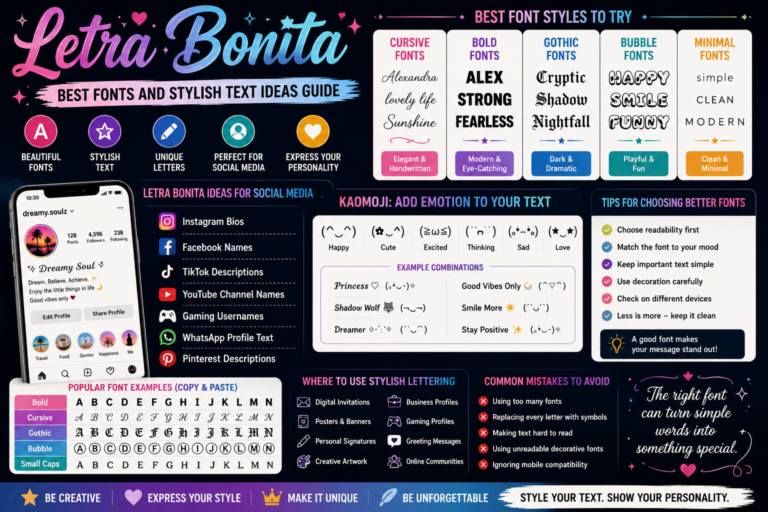
Newer models have improved dramatically. GPT Image 2 is specifically tuned for detailed images with fine typography, and readable on-image text is its standout strength on Animx. It handles headlines, short taglines and labels far more reliably than earlier generations, which opens up uses like posters, packaging mockups, signage, book covers and ad creative.
What Does GPT Image 2 Do Differently?
It generates the whole image to a brief. Instead of placing text on a template, it composes the scene and the words together, so lighting, perspective and style match.
It follows positional instructions. You can ask for text in the upper third, centred, or in the lower left corner, and describe how much space it should have around it.
It supports editing. The same model can change a tagline, swap a background or restyle a scene based on a new prompt, so you don’t have to start over for every revision.
It works with any palette or shape. Square, landscape, portrait and ultrawide formats are supported, with output up to 3840 pixels on the long edge. Quality settings range from low to high, so you can explore quickly and render final versions in more detail.
The trade-off is variance. Unlike a template, two runs of the same prompt won’t be identical. That’s useful for exploring options, but it means you’ll often generate a few versions and choose the best.
Which Jobs Suit Which Tool?
Use a template for quick, flat, repeating graphics: daily quote cards, simple announcements and anything where speed and exact repetition matter most.
Use GPT Image 2 for text inside scenes, graphics that must follow a specified palette, campaign sets across several formats and any visual where words and imagery need to work together.
The best approach is to use both. One isn’t simply an upgrade of the other; they suit different jobs.
How Do You Write a Request That Renders Text Correctly?
A few habits make a big difference:
Quote the exact text. Put the words in quotation marks, for example “SUMMER MARKET”. Animx recommends this so the model treats it as literal copy.
Keep it short. Headlines and short taglines render more reliably than long paragraphs.
Say where it goes. “Large headline centred in the upper third” is far clearer than “add a title”.
Describe the space around it. Ask for clean space behind the text so it stays readable.
Name the contrast. “White bold text on a dark navy background” avoids text disappearing into the image.
State the shape. Choose the aspect ratio first, because composition changes with the format.
Keep styling instructions separate from the wording itself. For example: “Poster for a weekend farmers’ market. Text: “SUMMER MARKET” in large cream serif letters, centred in the upper third. Below it, smaller text: “Saturdays 8am to 1pm”. Background: sunlit stalls with baskets of peaches and flowers, warm golden light, plenty of clear space behind the text.”
What Should Be Checked Before Publishing?
Even with much better text rendering, a quick review is essential:
Every character. Read each word letter by letter, including numbers, dates and prices.
Display size. Check the graphic at the size people will actually see it, especially on a phone.
Second languages. If your graphic includes another language, have a fluent speaker check it.
Unintended elements. Look for extra text, stray symbols or objects in the scene that you didn’t ask for.
For anything legally required, such as prices with terms, product information or regulated claims, setting the final text as live type in a design tool remains the safer choice.
What About Producing a Set Rather Than One Graphic?
A single graphic is one task. A campaign set, such as a square post, a story, a banner and a header, is another. Consistency comes from pinning down the style and reusing it. Once you have an approved result, save the exact prompt wording that produced it, and change only what needs to change for each format: the aspect ratio, the position of the text and the amount of surrounding space.
Reference images help too. On Animx, Seedream accepts up to 10 reference images, so you can use an approved graphic as a style guide for the rest of the set, then switch back to GPT Image 2 when precise text matters most.
How Does Animx Fit a Workflow That Uses Both?
Animx works well alongside template tools rather than replacing them entirely. In one browser workspace, you can:
- Run the same brief through GPT Image 2, Nano Banana Pro, Flux 2 Max and Seedream and compare the results side by side.
- Keep your attempts together, which matters because generating three and choosing one is normal practice.
- Edit an image in place to fix a tagline or background without starting again.
- Use reference images to keep a campaign consistent.
- Send any finished graphic to the video workspace with Animate to create a short motion version for social media.
How Would a First Comparison Go?
Give yourself twenty minutes:
1. Make a baseline in your usual template tool: a simple announcement with a headline on a flat background.
2. Make the same graphic with GPT Image 2 using a clear prompt with quoted text.
3. Compare honestly. Which is faster? Which looks better? Which needed fewer fixes?
4. Raise the difficulty. Try a brief that templates struggle with: the headline on a shop sign in a street scene, delivered in square, vertical and wide formats.
That second test usually shows exactly where each tool belongs.
Conclusion
Templates remain excellent for quick, single-message graphics on flat backgrounds. GPT Image 2 changes what’s possible when text needs to live inside a scene, follow a specific palette or work across a full set of formats. With readable on-image text, positional control, editing and high-resolution output, it turns AI image generation into a practical tool for posters, ads, packaging concepts and social campaigns. On Animx, it sits alongside other leading models, so you can compare, refine and keep the wording that works. Use the template when the template is right, and reach for GPT Image 2 when the job needs more.